Bootable USB Drive for Windows 11
4.0Editor score
No TPM requirement included
Compact 8GB storage size
UEFI and Legacy compatible
Compare the top bootable Windows 11 USB drives for installation, recovery, and system repair. This guide reviews ten reliable options to help you choose the
Finding a reliable bootable Windows 11 USB drive is essential for system repairs and fresh installations. These tools allow you to bypass hardware checks and reinstall operating systems quickly when your computer fails to start properly.
We evaluated ten popular options based on compatibility, included utilities, and ease of use. Our analysis focuses on drives that support both UEFI and Legacy BIOS while offering essential network drivers and recovery features for modern PCs.
Each selection highlights specific strengths like password resets or data backup capabilities. Remember that pricing and availability fluctuate frequently so verify current details before purchasing to ensure you get the latest version available today.
4.0Editor score

4.3Editor score

4.2Editor score
This side-by-side comparison highlights the key specifications and features of each drive to help you identify the best fit for your specific repair or installation needs.


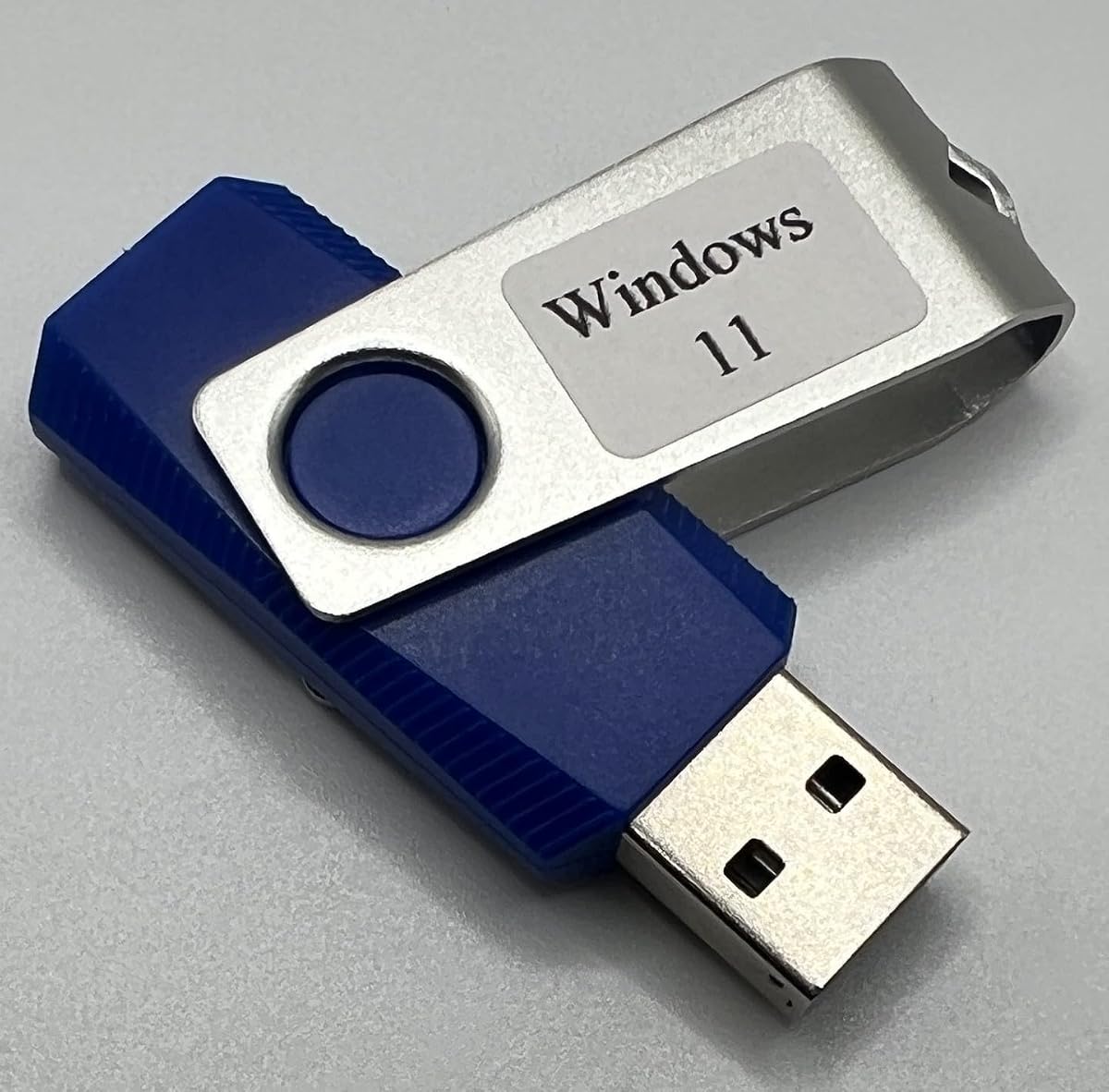


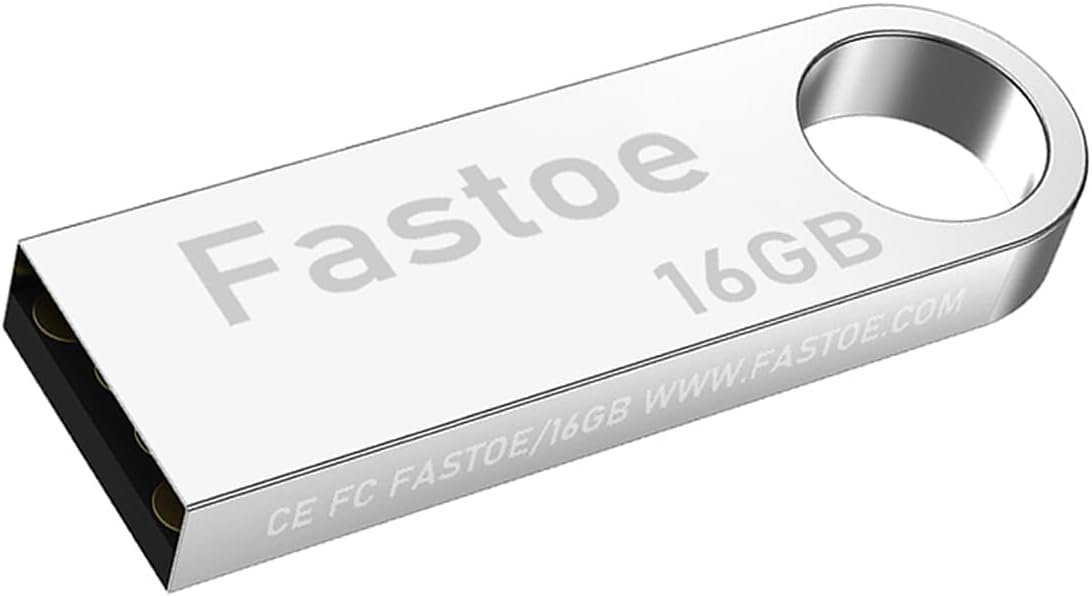
This 64GB USB drive ranks as our top pick due to its broad compatibility with Windows versions from 7 through 11. It offers a robust suite of maintenance tools that go beyond simple installation.
We may earn a commission when you buy through this link, at no additional cost to you.
The inclusion of network drives for WiFi and LAN ensures you can connect to the internet immediately after installation. This is crucial for downloading updates or drivers when your system lacks them.
While it requires disabling Secure Boot in some cases, this trade-off is acceptable given the extensive repair capabilities. It handles blue screens and crashes effectively by reinstalling the OS entirely.
This drive is ideal for users who need a reliable all-in-one solution for system recovery. Its large storage allows for extensive tools while maintaining fast transfer speeds for quick setups.
Network drives for WiFi and LAN are included so you can connect online immediately after installing Windows without needing extra drivers.
Supports Windows 11, 10, 8.1, and 7 ensuring this single drive works for older and newer machines alike.
We may earn a commission when you buy through this link, at no additional cost to you.
This compact 8GB drive offers an affordable entry point for those needing a simple Windows 11 installer. It is designed specifically for users who want to bypass TPM checks without extra cost.
We may earn a commission when you buy through this link, at no additional cost to you.
The focus on setup and recovery makes it straightforward for basic installations. You do not need to worry about complex partitioning or advanced repair tools for a fresh install.
However, it lacks the extensive toolkit of larger drives. If your computer has hardware issues or needs data recovery, this drive will not address those specific problems.
It is a solid choice for budget-conscious users with functional hardware needing a clean OS install. Verify your PC can enter BIOS before purchasing to ensure compatibility.
This drive allows you to install Windows 11 without meeting the TPM hardware requirement which simplifies setup on older machines.
Designed strictly for system setup and recovery so it avoids unnecessary bloat for users who only need a clean installation.
We may earn a commission when you buy through this link, at no additional cost to you.
This 32GB option stands out for its advanced features like hard drive partitioning and data recovery. It serves as a comprehensive maintenance tool for users who need more than just installation.
We may earn a commission when you buy through this link, at no additional cost to you.
The ability to access hard drives and backup data before reinstalling Windows adds significant value. This ensures your important files remain safe even if the system crashes.
While the installation process is generally smooth, errors can sometimes point to underlying drive issues. Technical support is available to help diagnose these specific problems when they arise.
Ideal for users managing multiple PCs or needing data safety features. The balance of storage and utility makes it a premium choice for serious system maintenance tasks.
Allows you to access hard drives and backup data to keep your files safe before performing any installation or recovery operations.
Includes hard drive partitioning utilities that let you manage storage spaces effectively during your system setup process.
We may earn a commission when you buy through this link, at no additional cost to you.
This drive distinguishes itself with a dedicated Windows password reset utility which is valuable for locked out users. It also includes hardware testing tools to verify system stability after repairs.
We may earn a commission when you buy through this link, at no additional cost to you.
The inclusion of WinPE utilities allows for deep system troubleshooting beyond basic installation. You can diagnose common PC problems and restore accounts without needing extra software.
As with many options, disabling Secure Boot might be necessary for successful booting. This is a standard step for many bootable media devices and is well documented in the tutorials.
Best for users who need to recover access to locked accounts or test hardware. The combination of repair tools and reinstall capabilities makes it a versatile choice for maintenance.
Includes a Windows password reset tool that helps you regain access to your system if you have forgotten your login credentials.
Contains hardware testing utilities to check if your computer components are working properly after installing Windows.
We may earn a commission when you buy through this link, at no additional cost to you.
This drive is unique because it works with Secure Boot enabled which saves time on BIOS configuration. It downloads genuine Windows directly from Microsoft ensuring you get the latest official version without outdated ISOs.
We may earn a commission when you buy through this link, at no additional cost to you.
The use of official downloads means there are no pirated copies or modified system files. This provides a higher level of trust for users concerned about system integrity and security updates.
While it lacks support for Legacy BIOS, most modern PCs from 2013 onwards use UEFI so this is rarely an issue. The US-based support team offers real help rather than automated responses.
Ideal for users who want a secure straightforward installation process without disabling security features. The focus on official sources and live support makes it a reliable choice for modern systems.
Unlike other drives this option works with Secure Boot enabled so you do not need to change any BIOS settings to boot.
Always installs the latest official Windows version by downloading directly from Microsoft instead of using outdated prepackaged ISO files.
We may earn a commission when you buy through this link, at no additional cost to you.
This drive offers multiple recovery options including system repair fresh installation and restore which provides flexibility in resolving issues. It is designed to handle common problems like black screens or performance slowness.
We may earn a commission when you buy through this link, at no additional cost to you.
The package includes detailed instructions for setup and repair procedures making it accessible for beginners. This guidance helps ensure proper boot setup across different computer configurations without confusion.
With a lower rating than top picks it may offer fewer advanced tools. It focuses on essential recovery needs rather than extensive hardware testing or network drive integration.
Suitable for users who prioritize straightforward recovery instructions over advanced features. It serves as a reliable backup for basic system restoration tasks when other options are unavailable.
Offers several recovery options including system repair fresh installation and system restore so you can choose the best method for your problem.
Includes detailed instructions for system recovery and proper boot setup to help you navigate the process without technical difficulties.
We may earn a commission when you buy through this link, at no additional cost to you.
This drive includes one license key for installation which adds value for users who need activation without purchasing separately. It also comes with instructions on how to redeem the key during or after setup.
We may earn a commission when you buy through this link, at no additional cost to you.
The package provides password recovery and machine troubleshooting tools that help manage system issues beyond just installation. These utilities ensure you can handle common errors effectively.
However the single license limits flexibility if you have multiple systems to fix. Secure Boot also needs to be turned off temporarily which is a standard step but worth noting.
Best for users who need immediate activation support. The combination of a license key and troubleshooting tools makes it a practical choice for quick system setups.
Includes one license key for installation with instructions on how to redeem the activation key during the setup process.
Provides machine troubleshooting utilities to help resolve common errors and system issues after Windows is installed.
We may earn a commission when you buy through this link, at no additional cost to you.
This drive features a WinPE utility suite that allows for deep system backups and troubleshooting. It can recover user accounts and diagnose common problems without needing a full OS install.
We may earn a commission when you buy through this link, at no additional cost to you.
Video instructions are included to guide you through booting the drive which simplifies the process for beginners. This visual aid ensures you can start your PC from USB correctly.
It supports a wide range of Windows versions from 7 through 11 making it versatile for older and newer machines. The focus on backups means you can save data before repairs.
Ideal for users who need reliable backup and recovery tools. The combination of WinPE tools and clear video guides makes it a strong choice for detailed maintenance tasks.
Includes a WinPE utility suite to backup files troubleshoot startup problems and recover data without needing an OS install.
Video instructions are provided to guide you through starting a PC from the USB drive which simplifies the setup process.
We may earn a commission when you buy through this link, at no additional cost to you.
This drive comes with a 30-in-1 utility suite providing access to numerous installation and repair options in one place. It is ready to use immediately without downloading large system files yourself.
We may earn a commission when you buy through this link, at no additional cost to you.
The breadth of tools helps keep older PCs useful by allowing refreshes and reinstalls before deciding on replacement. It is suitable for enthusiasts or technicians who need flexible options.
While the variety is great it may overwhelm users who just need a simple install. Ensure your computer supports USB booting and check compatibility with your specific system architecture.
Best for users who want a versatile toolkit for various maintenance needs. The ready to use nature saves time and ensures you have multiple recovery paths available.
Provides access to 30 tools for installation and recovery including startup failures and system crashes without needing multiple downloads.
Ready to use bootable USB that helps eliminate the need to download large system files or create bootable media yourself.
We may earn a commission when you buy through this link, at no additional cost to you.
This drive is built with a high quality USB flash drive and is compatible with all major PC brands including Dell and HP. It uses professional production tools to ensure product quality and reliability.
We may earn a commission when you buy through this link, at no additional cost to you.
The latest official version of Windows 11 is deployed without viruses or spyware ensuring a clean and secure starting point. This focus on quality control makes it a safe option for fresh installs.
While it offers fewer specialized tools than other options it provides basic plug and play functionality with online support. This simplicity suits users who want a straightforward path to Windows 11.
Ideal for users needing a reliable installer for standard PCs. The broad brand compatibility and clean deployment make it a solid choice for general system updates.
Compatible with all PC brands including laptops or desktops from major manufacturers like Dell HP Lenovo and Samsung.
Deployed with the latest official original version of Windows 11 with no viruses or spyware for a clean installation.
We may earn a commission when you buy through this link, at no additional cost to you.
Selecting the right bootable Windows 11 USB drive requires understanding your specific needs for installation, repair, or recovery features. This guide outlines the key factors to consider.
Larger storage capacities like 64GB allow for more utilities and network drivers while smaller options like 8GB suffice for basic installation. Ensure the USB version is 3.2 for faster transfer speeds during setup.
Choose a drive with enough space for the tools you need but prioritize speed to reduce installation time significantly.
Many drives explicitly state whether they bypass the TPM requirement which is crucial for older hardware that does not meet official Windows 11 criteria. Look for drives that mention no TPM requirement if your system lacks this chip.
Verify if your hardware supports TPM bypass or if you need a drive that handles this automatically before purchasing.
Modern systems use UEFI while older ones rely on Legacy BIOS so ensure the drive supports both if you have mixed environments. Check the product details for UEFI and Legacy support labels.
Select a drive that matches your motherboard's boot settings to avoid compatibility issues during the installation process.
After installation, you may need network drivers to connect to the internet. Drives that include WiFi and LAN drivers save time and ensure you can download updates immediately.
Prioritize drives that explicitly mention included network drives to avoid internet connectivity issues after setup.
Some drives focus only on installation while others offer password resets or data recovery. Choose based on whether you need to fix errors or simply install a fresh system.
Assess if you need advanced utilities like partitioning or backup tools to handle system maintenance tasks effectively.
Most drives require disabling Secure Boot in BIOS which can be a hurdle for beginners. Look for options that explicitly support Secure Boot ON if you prefer not to change BIOS settings.
Confirm whether the drive works with Secure Boot enabled to simplify the booting process on newer systems.
Drives with video tutorials and online support help beginners navigate booting and installation smoothly. This is especially helpful if you are new to system recovery tasks.
Prioritize products that include visual guides and technical support for a smoother experience during setup.
Most drives do not include a Windows product key so you will need your own license or purchase one separately. Some options include a single redeemable key but check the details carefully.
Ensure you have a valid license available before installing since the drive itself usually does not provide full activation.
Plug the USB drive into a USB port on your computer and restart the system to access the boot menu. Select the USB drive from the list to begin the installation or repair process.
Follow the on-screen instructions carefully and disable Secure Boot if the drive requires it for successful booting. Ensure your network drivers are selected if you need internet access after setup.
Store the drive in a safe dry place to protect data and avoid physical damage. Keep it away from extreme temperatures and moisture to maintain reliability for future use.
Most bootable USB drives do not include a product key. You must use your existing license or purchase one separately. Some specific options include one redeemable key for installation.
Yes, many drives support older Windows versions like 7 and 8.1 and offer Legacy BIOS compatibility. Always check product specs to ensure your system architecture is supported.
Installing Windows usually requires formatting the drive which erases existing data. Back up important files to another drive before starting the process to avoid data loss.
Secure Boot prevents unsigned software from running which blocks some bootable media. Disabling it allows the USB to start properly but you may re-enable it after installation.
Most top choices support both UEFI and Legacy boot modes for broad compatibility. Verify the product details to confirm support for your specific motherboard setup.
Yes, many drives bypass the TPM requirement allowing installation on unsupported hardware. Look for drives that explicitly mention no TPM required for this feature.
The top picks offer a range of solutions from budget installers to comprehensive repair kits with network drivers. Choose based on your need for tools like password resets or simple setup options.
Prioritize drives that support your hardware architecture and offer clear instructions for booting. Security features like Secure Boot support can also simplify the setup process.
Prices and availability may change so always check current product details before purchasing to ensure you get the latest version available for your system needs.