
32GB 9-in-1 Linux Bootable USB Drive for Beginners
4.2Editor score
Nine beginner friendly distros
Simple printed user guide
Cost effective entry option
This guide compares the top bootable Linux USB drives for 2026, evaluating distro variety, ease of use, and compatibility for beginners and experts.
Finding the right bootable Linux USB drive can simplify system testing and recovery without altering your hard drive. These preconfigured sticks let you run full operating systems directly from removable media. They are ideal for troubleshooting, privacy, and trying new software safely.
We compared ten popular options based on distro variety, hardware compatibility, and user feedback. Each product offers unique features like multi-boot support or specific distro focuses. Our analysis helps you choose the best tool for your technical needs and experience level.
Each pick highlights key strengths, trade-offs, and ideal use cases for different users. Prices and availability change frequently, so verify details before purchasing. These tools empower you to explore Linux flexibility while maintaining security and control over your computing environment.
4.2Editor score

4.1Editor score

4.6Editor score
This table provides a side-by-side look at all ten options, highlighting their unique distro selections, interface sizes, and target audiences. Use it to quickly identify which drive fits your specific hardware and software requirements.



This 16-in-1 bootable USB drive offers an extensive collection of Linux distributions and Windows 11, making it a versatile tool for diverse users. Rated 4.1 stars, it supports both UEFI and legacy BIOS, ensuring broad hardware compatibility. It is perfect for those who need multiple OS options in one portable stick.
We may earn a commission when you buy through this link, at no additional cost to you.
The drive includes popular distros like Ubuntu, Mint, Kali, and Tails, all tested for bootability. With USB 3.2 speed, performance is smooth for live sessions. The included video instructions and boot menu key list simplify setup for new users. It saves time by removing the need to download and burn ISOs manually.
One trade-off is that the variety might overwhelm absolute beginners who only need one system. Also, the specific versions on the drive may change as the vendor updates them. However, these are acceptable since the latest LTS releases are generally preferred for stability and security.
This drive is best for IT pros, students, and enthusiasts who want a Swiss-army-knife tool. If you need a single OS, consider a dedicated drive. Otherwise, this comprehensive pack delivers excellent value and flexibility for testing and recovery tasks on modern and older PCs.
You get access to sixteen different operating systems, including specialized tools like Kali and Tails, which are essential for security testing and privacy-focused browsing.
Support for both UEFI and legacy BIOS means you can use this drive on almost any laptop or desktop, from recent models to older hardware.
We may earn a commission when you buy through this link, at no additional cost to you.
This 9-in-1 Linux bootable USB is tailored for beginners transitioning from Windows to Linux. With a 4.2 rating, it balances simplicity and functionality well. The drive includes familiar distros like Ubuntu and Mint, plus user-friendly options like Elementary OS. It is an affordable way to start exploring open-source systems.
We may earn a commission when you buy through this link, at no additional cost to you.
The setup is straightforward, with a printed guide to help you boot and install. You can try each distro without touching your hard drive, which reduces risk. The included software ranges like office suites and browsers make it ready for daily tasks. It supports both legacy BIOS and UEFI modes.
The main limitation is the smaller storage capacity compared to 64GB options, which might limit customization. Also, nine distros are fewer than the 16 available in premium sets. However, for a first-time user, this selection is more than sufficient and easier to manage.
This drive is ideal for students, home users, or anyone seeking a low-cost introduction to Linux. If you need advanced tools or more space, look elsewhere. For basic testing and learning, it provides excellent value and a smooth onboarding experience.
The selection includes user-friendly systems like Linux Mint and Elementary OS, which are designed to mimic Windows or macOS interfaces for easier adoption.
At a budget-friendly price point, it offers an accessible entry into Linux without requiring prior technical knowledge or complex setup steps.
We may earn a commission when you buy through this link, at no additional cost to you.
This dedicated Linux Mint 22.3 drive offers a premium experience for users who value stability and ease of use. With a 4.6 rating, it stands out for its polished interface and reliable performance. It is preloaded with office tools, media players, and graphics software, making it a full desktop replacement on USB.
We may earn a commission when you buy through this link, at no additional cost to you.
The drive is optimized for running directly without installation, ideal for testing or temporary use. The Cinnamon desktop environment is intuitive, especially for Windows converts. Security and privacy are built-in, with no forced updates or account requirements. It works on both UEFI and legacy systems.
The trade-off is that it only offers one distro, which limits exploration if you need specialized tools like Kali. However, for general productivity and daily computing, Mint is often the best choice. The single focus ensures a streamlined, bloat-free experience tailored for reliability.
This drive is best for professionals and families who want a stable, ready-to-go OS. If you need variety, check multi-boot options. For a premium, hassle-free Linux experience, this Mint drive delivers exceptional quality and user satisfaction.
From LibreOffice to multimedia apps, everything you need for work and play is included, allowing you to use the USB as a primary system.
The Mint 22.3 Cinnamon environment is refined for smooth operation, even on older hardware, ensuring consistent results without crashes.
We may earn a commission when you buy through this link, at no additional cost to you.
This Debian 13.7 bootable USB is a top choice for those prioritizing rock-solid stability and open-source purity. With a perfect 5-star rating, it is trusted by developers and professionals worldwide. It offers a clean, lightweight environment without unnecessary bloat, making it efficient for various computing tasks.
We may earn a commission when you buy through this link, at no additional cost to you.
Debian is known for its rigorous testing and regular security updates. The drive is ready for immediate use in live mode or full installation. It respects privacy with no tracking or forced updates. Its open-source nature allows deep customization for advanced users.
However, Debian might be too technical for casual users accustomed to simpler interfaces. The UI is functional but less polished than Mint or Ubuntu. Despite this, its reliability makes it ideal for servers, coding, and critical tasks where consistency is key.
This drive is best for developers, sysadmins, and privacy-conscious users. If you need a friendly desktop, consider Mint. For robust, dependable performance, this Debian drive offers unmatched quality and peace of mind.
Debian's reputation for stability ensures that the system runs smoothly on both modern and older hardware with minimal configuration.
Access to thousands of packages and tools makes it an excellent choice for coding, scripting, and server management tasks.
We may earn a commission when you buy through this link, at no additional cost to you.
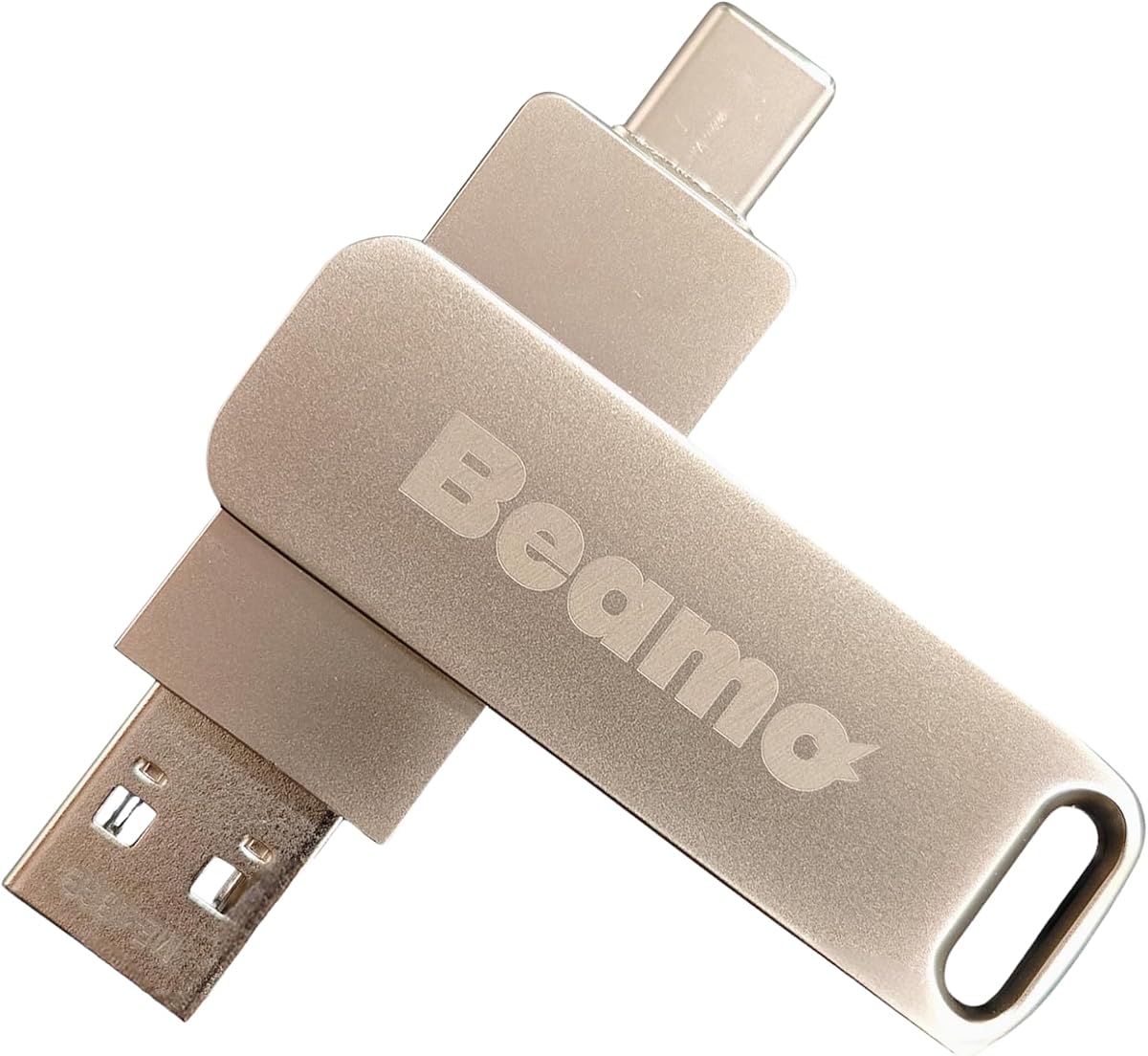
This Beamo Linux Mint drive is optimized for installing and repairing Mint systems, with a 4.3 rating for reliability. It runs Mint 22.3 in live mode, allowing you to assess compatibility before committing. The 16GB drive is compact but sufficient for system tasks and backups.
We may earn a commission when you buy through this link, at no additional cost to you.
It includes utilities to help troubleshoot or recover data from existing hard drives. Setup is straightforward, with clear guidance for BIOS settings. While limited to Mint, it provides a focused tool for maintenance. Ideal for users who already prefer Mint or need rescue capabilities.
The smaller storage means less room for extra software or files. Also, if you need other distros, this won't suffice. However, for Mint users, the focused approach ensures everything works as expected without extra bloat.
This drive is best for Mint users needing a recovery or install tool. For broader testing, choose a multi-boot option. For dedicated Mint support, this offers precise functionality at a reasonable price.
The live environment includes tools to diagnose issues and recover data, making it a valuable resource for IT support.
At just 16GB, it is small enough to carry everywhere while still holding everything needed for Mint installation.
We may earn a commission when you buy through this link, at no additional cost to you.
This 3IN1 Mint USB offers three versions of Linux Mint, including a 32-bit option for older hardware. Rated 4.1, it caters to users reviving legacy PCs. The drive supports both legacy BIOS and UEFI, ensuring compatibility across generations. It is straightforward to boot and try different Mint flavors.
We may earn a commission when you buy through this link, at no additional cost to you.
Having multiple versions allows you to pick one that fits your hardware best. The 32-bit support is rare but vital for very old machines. Setup is easy, with printed guides to assist. It is a practical choice for those focused on Mint alone.
The trade-off is the lack of other distros like Ubuntu or Fedora. However, Mint covers most desktop needs. For older computers, this specialized focus is valuable since compatibility is often the biggest challenge.
This drive is best for owners of legacy systems needing 32-bit support. For newer PCs, other multi-distro options offer more flexibility. For Mint on old hardware, this delivers exactly what you need.
The inclusion of 32-bit and multiple Mint versions ensures you can run modern OS features on decade-old computers.
You can test Mint 19.3, 21.3, and 22 without downloading separate ISOs, saving time and effort.
We may earn a commission when you buy through this link, at no additional cost to you.
This 7-in-1 utility USB includes tools like Clonezilla and Tails, making it useful for imaging and privacy tasks. Rated 3.9, it serves niche needs like Windows XP support for legacy software. The 16GB drive is compact but enough for system utilities. It supports both UEFI and legacy BIOS.
We may earn a commission when you buy through this link, at no additional cost to you.
The presence of Clonezilla is a major plus for backups and disk cloning. Windows XP inclusion is rare and helpful for specific legacy drivers. It is a specialized tool rather than a general-purpose desktop kit. The setup is simple, with boot menu guides included.
The lower rating suggests some users may find the variety limited compared to 16-in-1 options. However, the focus on utilities makes it valuable for IT professionals. For daily desktop use, other drives offer better OS variety.
This drive is best for technicians needing imaging tools and legacy support. For general Linux exploration, consider broader options. For utility-focused tasks, it provides essential tools in a portable format.
Clonezilla allows easy disk cloning and imaging, making this drive a lifesaver for data recovery and system migration.
The inclusion of Windows XP means you can run old applications that no longer support modern operating systems.
We may earn a commission when you buy through this link, at no additional cost to you.
This Mint Cinnamon bootable USB is built to breathe new life into older hardware with a 4.2 rating. It features high-quality flash chips for better speed and longevity. The Cinnamon desktop is lightweight yet modern, giving aging PCs a smooth experience. Dual USB-A and USB-C ports ensure broad compatibility.
We may earn a commission when you buy through this link, at no additional cost to you.
The drive allows you to run Mint without changing your hard drive. It comes with standard apps for work and entertainment. The lack of forced updates makes it reliable for daily tasks. It is easy to install permanently if desired.
The single OS focus limits flexibility, but for reviving old systems, it is ideal. Other multi-boot options might be heavier or more complex. For older laptops, the optimized performance is a key benefit.
This drive is best for those upgrading old machines. For general testing, other options offer more variety. For extending PC life, this Mint drive delivers solid performance and stability.
The optimized design ensures that even five-year-old hardware can run modern applications smoothly and efficiently.
High-quality flash chips improve read speeds and durability, ensuring the drive lasts longer during intensive use.
We may earn a commission when you buy through this link, at no additional cost to you.
This 3IN1 Ubuntu USB offers three versions of Ubuntu, including LTS releases for stability. Rated 4.2, it is perfect for those committed to the Ubuntu ecosystem. It supports both 64-bit and 32-bit systems, making it useful for older hardware too. The 32GB drive is sufficient for live sessions and testing.
We may earn a commission when you buy through this link, at no additional cost to you.
Lubuntu is included for very old PCs needing lightweight performance. Ubuntu 24.04 and 22.04 LTS ensure you have recent, supported software. Setup is simple, with guides for BIOS configuration. It works with both legacy BIOS and UEFI.
The limitation is the lack of non-Ubuntu distros like Fedora or Debian. However, for Ubuntu users, this is a practical and efficient solution. You avoid the hassle of downloading and burning separate ISOs.
This drive is best for Ubuntu enthusiasts needing flexible options. For broader distro variety, other options exist. For Ubuntu-focused work, this provides essential versions and stability.
Long Term Support versions mean you get security updates and stability without frequent major changes to your system.
The inclusion of Lubuntu 18.04 32-bit ensures even old PCs can run modern applications efficiently.
We may earn a commission when you buy through this link, at no additional cost to you.
This Ubuntu Linux USB includes both desktop and server installers, with a 4.1 rating for flexibility. It is ideal for professionals needing server tools alongside desktop use. The dual USB-A and USB-C design supports modern and older hardware. You can customize the installation with clear step-by-step guides.
We may earn a commission when you buy through this link, at no additional cost to you.
The drive respects privacy with no forced data collection or updates. It includes productivity tools for daily computing. Ubuntu Server is a key feature for hosting or learning Linux administration. Setup is straightforward, with options for persistent storage.
The server focus may be unnecessary for casual users, and the variety is narrower than 16-in-1 options. However, for professionals, this dual-purpose approach is highly valuable. You avoid needing two separate drives for desktop and server tasks.
This drive is best for IT pros and students. For casual use, simpler options may suffice. For professional versatility, it offers a complete Ubuntu experience in one package.
Having both installers allows you to test or deploy Ubuntu in any environment without switching drives.
The ability to add custom tools makes it a powerful resource for system administrators and developers.
We may earn a commission when you buy through this link, at no additional cost to you.
Selecting the right bootable Linux USB drive depends on your hardware, technical needs, and preferred operating systems. This guide outlines key factors to ensure you find a reliable and compatible tool.
Multi-boot drives offer several Linux distributions in one package, which is useful for testing or troubleshooting. If you only need one OS, a single-distro drive may be simpler and cheaper.
Choose multi-boot if you need flexibility; choose single-distro for focus and ease of use.
USB 3.0 or 3.2 drives provide faster boot and load times compared to USB 2.0. This matters for running complex systems or using persistent storage.
Prioritize USB 3.x for performance; older USB 2.0 may suffice for lightweight distros.
Larger capacities like 64GB allow for persistent data and more installed software. Smaller sizes like 16GB are cheaper but limit customization.
Pick 64GB if you need persistent storage; 16GB or 32GB works for temporary testing.
Modern computers use UEFI, while older ones may require Legacy BIOS. Ensure the drive supports your system's boot mode to avoid compatibility issues.
Check your motherboard's boot options and confirm the drive supports both UEFI and Legacy if needed.
Some drives come with printed guides or video tutorials to simplify booting. Beginners benefit from clear instructions and straightforward menus.
Look for included guides or online resources to reduce setup time and frustration.
If you need security tools, Kali or Tails options are crucial. For daily use, Ubuntu or Mint provide better productivity apps. For older hardware, 32-bit support may be essential.
Align your choice with your primary goal: security, daily use, or legacy hardware support.
Premium flash chips improve speed and lifespan, especially during repeated use. Cheap drives may fail sooner under heavy workloads.
Invest in drives with quality hardware to ensure long-term reliability and performance.
Reputable vendors offer support and update distros regularly. Check reviews for responsiveness and the frequency of updates.
Select vendors with positive feedback on support to handle any boot issues quickly.
To start, plug the drive into your computer and restart. Enter your BIOS or boot menu by pressing a key like F2, F12, or Delete during startup. Select the USB drive from the boot options to launch Linux.
Once booted, you can test the OS or proceed with installation. Follow on-screen instructions to either try the system or install it on your hard drive. Ensure your data is backed up before any permanent changes.
Store the drive in a protective case to avoid physical damage. Avoid forceful removal during writes; always eject it safely. Keep the drive dry and away from extreme temperatures to maintain longevity.
No, you can run most Linux distributions directly from the USB drive in live mode without installing anything on your computer. This allows you to test the OS and use tools before deciding to install. It is a safe way to explore Linux without affecting your hard drive.
Some bootable drives support persistent storage, letting you save files between sessions. Others are read-only and lose data after reboot. Check the product details or use tools like Rufus to enable persistence if needed. This is useful for keeping personal settings and documents.
Most modern computers support USB boot, but you may need to enable it in BIOS or UEFI settings. Older systems might require Legacy BIOS support. ARM-based devices like some Chromebooks may not be compatible. Verify your hardware's boot options before purchasing.
UEFI is a modern boot standard offering faster startup and better security. Legacy BIOS is an older method. Most new computers use UEFI, but some older hardware needs Legacy mode. Ensure your USB drive supports your system's boot type to avoid issues.
For beginners, Ubuntu or Mint are user-friendly and well-supported. For privacy, try Tails. For advanced tools, Kali Linux is common. If you need stability for servers, Debian or Ubuntu Server are great. Consider your goals and technical comfort when picking.
Yes, most bootable Linux USB drives work with Windows 11, but you may need to disable Secure Boot in BIOS settings. Also, ensure the drive supports UEFI boot, which is standard on Windows 11 computers. Follow the manufacturer's instructions for smooth compatibility.
The 16-in-1 USB 3.2 drive stands out for its versatility, while the 9-in-1 beginners option offers budget-friendly entry. The Mint 22.3 drive provides a polished daily experience for those focused on a single OS.
Prioritize USB speed, storage capacity, and boot mode support based on your hardware. Whether you need a multi-distro toolkit or a dedicated system, there is an option for every use case. Matching features to your needs ensures a smooth experience.
Prices and availability fluctuate, so check current details before buying. Verify compatibility with your computer's BIOS or UEFI settings. With the right bootable Linux USB drive, you gain the flexibility to explore, restore, and secure your computing environment.