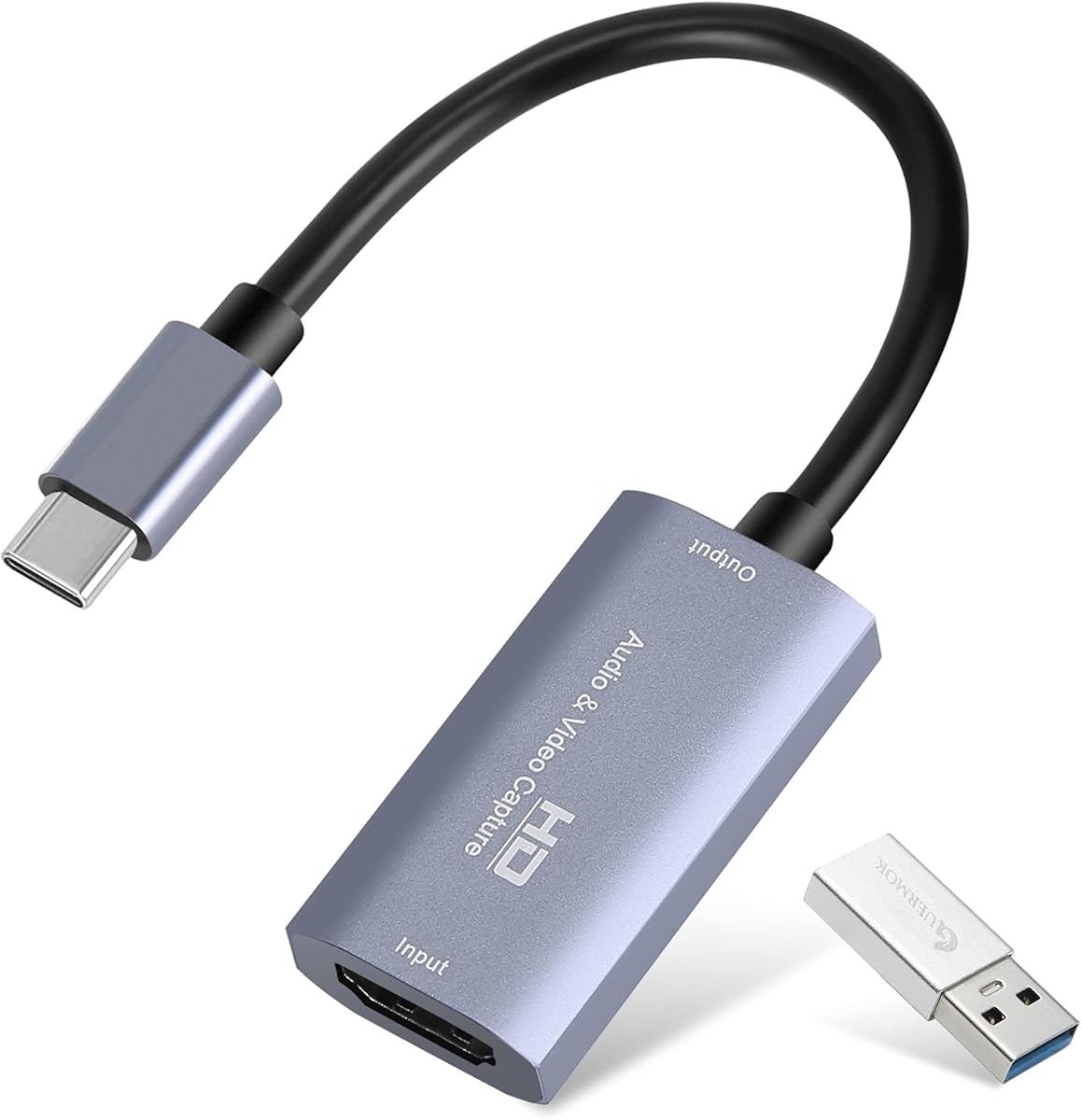
Guermok Video Capture Card
4.4Editor score
1080P 60FPS output
Plug and play design
Compatible with Linux OS
Ultra low latency streaming
This guide compares the top ten capture cards for Linux systems focusing on compatibility performance and features for streaming recording and gaming workflows.
Finding a capture card for Linux can be challenging due to driver support and hardware compatibility. This guide reviews the top options that work seamlessly with open source streaming software and common operating systems.
We evaluated each product based on video quality latency build quality and Linux specific support. Our team analyzed technical specifications user feedback and compatibility lists to create this comprehensive ranking.
Each pick highlights key strengths potential trade-offs and ideal use cases. Prices and availability change frequently so please check the product links for the most current details before making a decision.
4.4Editor score

4.5Editor score

4.2Editor score
The following table provides a side-by-side comparison of all ten capture cards reviewed in this guide. Each entry highlights core specifications compatibility notes and key features to help you quickly identify the right device for your Linux setup.


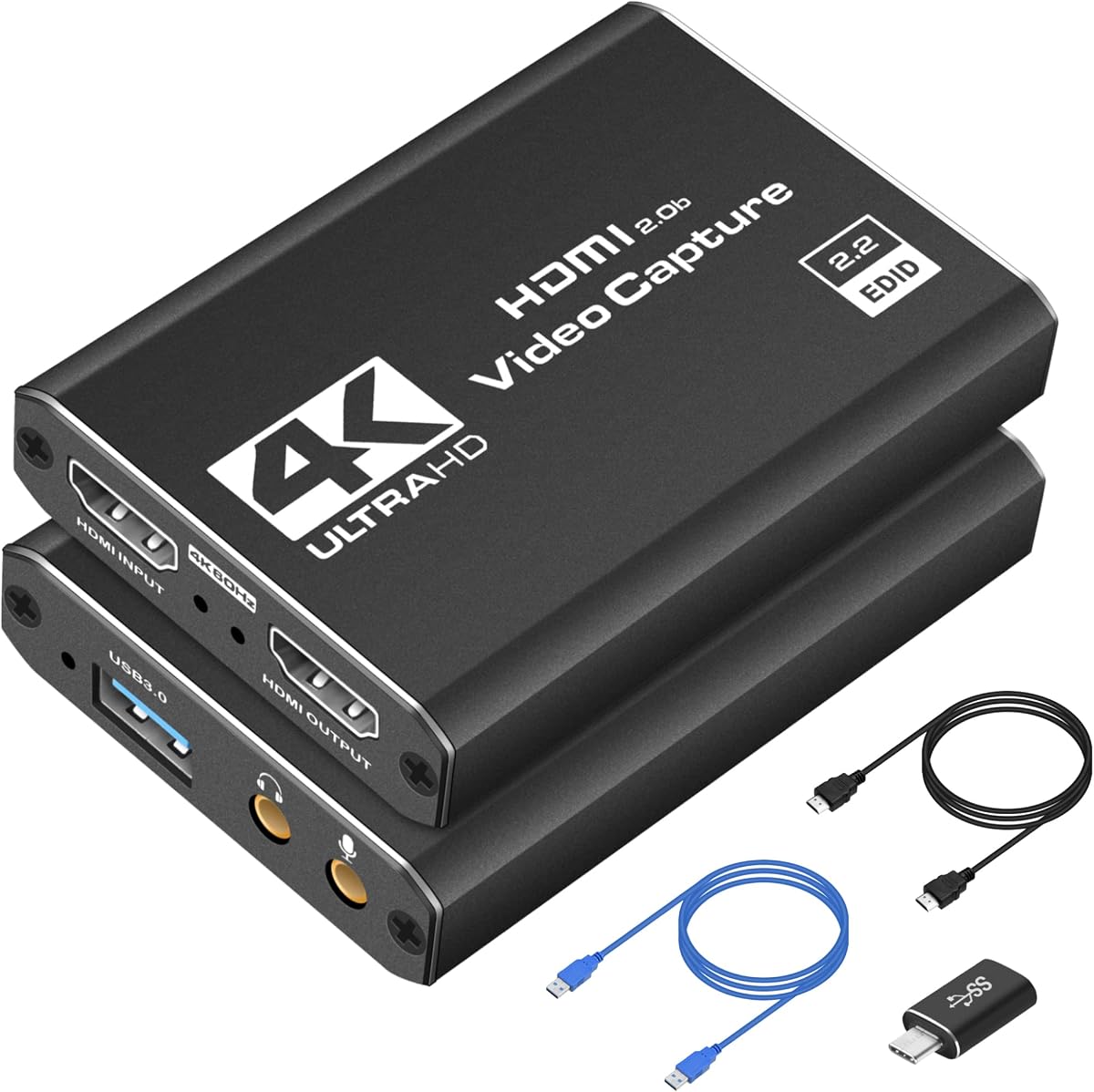


The acer USB 3.0 HDMI Capture Card stands out as a top choice for Linux users seeking affordable high quality video capture. It delivers 1080P at 60Hz with minimal latency and supports 4K input making it versatile for various setups.
We may earn a commission when you buy through this link, at no additional cost to you.
Its plug and play functionality means you can connect it to your Linux machine and start streaming or recording immediately without installing complex drivers. The included microphone input allows for real time commentary syncing with video.
While the build is compact and portable it lacks some premium features like aluminum housing. Some users may find the lack of detailed driver support a minor hurdle but overall performance remains stable for standard streaming needs.
This card is ideal for gamers and educators who need a reliable budget friendly solution. It works seamlessly with OBS and VLC on Linux ensuring smooth workflow for content creation and live broadcasting.
This device is recognized as a standard UVC device by most modern Linux kernels allowing instant detection without extra configuration.
The low latency design ensures audio from the mic-in port stays perfectly synced with video output during live streams.
We may earn a commission when you buy through this link, at no additional cost to you.
UGREEN offers a robust capture card with dual USB interfaces making it highly compatible with various devices. It supports 2K capture at 30FPS and includes a loopout for real time monitoring without latency.
We may earn a commission when you buy through this link, at no additional cost to you.
The aluminum casing helps dissipate heat during long sessions which is crucial for maintaining stable performance. Linux users benefit from plug and play support allowing quick setup with OBS or other recording software.
While it does not capture 4K output it handles 4K input well ensuring high quality source signals. The only minor note is that Windows users might need drivers though Linux works natively.
This card suits creators who need flexibility with connection types and monitoring. Its build quality and thermal management make it a reliable choice for daily streaming and recording tasks.
The aluminum enclosure actively cools the internal chip preventing overheating during extended recording sessions.
Having both USB A and C ports allows you to connect to laptops desktops or tablets without extra adapters.
We may earn a commission when you buy through this link, at no additional cost to you.
This UGREEN model explicitly lists Linux compatibility making it a top pick for open source users. It captures up to 2K at 30FPS with 4K input support ensuring high fidelity video sources.
We may earn a commission when you buy through this link, at no additional cost to you.
The dual USB A and C ports provide versatile connectivity while the aluminum housing ensures stable thermal performance. Linux users can rely on plug and play functionality with standard UVC drivers.
Although it does not output 4K the 2K resolution offers excellent clarity for most streaming platforms. The 5Gbps transfer speed ensures minimal lag for real time broadcasting.
Ideal for professionals and hobbyists on Linux this card balances performance and compatibility effectively. It works seamlessly with OBS Potplayer and other common tools for smooth workflows.
Most Linux distributions recognize this card automatically via the UVC protocol requiring no manual driver installation.
The internal cable construction uses tinned copper to maintain signal integrity and reduce interference.
We may earn a commission when you buy through this link, at no additional cost to you.
The Guermok card is incredibly portable making it perfect for on the go content creators. It delivers 1080P at 60FPS and supports Linux out of the box with no drivers needed.
We may earn a commission when you buy through this link, at no additional cost to you.
Its aluminum alloy casing helps manage heat while the USB C interface ensures modern connectivity. Linux users can integrate it quickly into OBS or similar apps for immediate streaming.
While it only supports one way transmission and requires software it covers most use cases efficiently. The low latency ensures smooth real time monitoring during gameplay or conferences.
This card is a great fit for travelers and students needing a reliable capture solution. Its ease of use and Linux compatibility make it a strong contender in the budget segment.
The compact form factor allows it to fit in a laptop bag for effortless transport.
Works smoothly with OBS Studio VLC and other capture apps on Linux systems.
We may earn a commission when you buy through this link, at no additional cost to you.
Newhope provides a solid capture card with HDMI loopout allowing you to monitor gameplay while recording. It supports 1080P at 60FPS and includes mic-in for commentary syncing.
We may earn a commission when you buy through this link, at no additional cost to you.
The plug and play feature ensures Linux users can connect and start capturing without delay. Compatibility with OBS and VLC makes it easy to integrate into existing workflows.
While the build is simple the pass through feature is valuable for reducing latency on monitors. It works well for gaming streams where real time monitoring is essential.
This card is suitable for casual streamers and educators needing basic functionality. Its Linux support and loopout make it a practical choice for budget conscious buyers.
The HDMI loopout allows direct connection to a TV or monitor for zero lag gameplay.
Mic-in port lets you record voice commentary without extra adapters or interfaces.
We may earn a commission when you buy through this link, at no additional cost to you.
This generic capture card is optimized for streaming workflows with low latency and plug and play support. It delivers 1080P at 60FPS and works with Linux and major streaming software.
We may earn a commission when you buy through this link, at no additional cost to you.
Its lightweight design makes it easy to transport while the low latency ensures real time feedback during broadcasts. Linux users can connect it directly to OBS without driver hurdles.
The lack of audio input might require external solutions for commentary but video quality remains sharp. It is a straightforward device for those focused purely on video capture.
Ideal for streamers on a budget this card offers essential features without unnecessary complexity. Its simplicity and Linux compatibility make it a reliable workhorse.
Designed to minimize lag between source and capture ensuring smooth live broadcasts.
Delivers crisp 1080P 60FPS video suitable for high quality content creation.
We may earn a commission when you buy through this link, at no additional cost to you.
This capture card offers both mic and headphone monitoring making audio management straightforward. It supports Linux and delivers 1080P at 60FPS with low latency for smooth streaming.
We may earn a commission when you buy through this link, at no additional cost to you.
The USB 3.0 connection ensures fast data transfer while the 4K input supports high fidelity sources. Linux users benefit from plug and play compatibility without extra configuration.
While it may not have premium build features the audio ports are a strong advantage for podcasters and gamers. It keeps video and audio synchronized for professional results.
Perfect for users needing audio monitoring this card balances simplicity and functionality. Its Linux support and plug and play nature make it a convenient choice.
Headphone and mic ports allow real time monitoring and voice recording in one unit.
Accepts 4K input signals ensuring high quality source compatibility for future proofing.
We may earn a commission when you buy through this link, at no additional cost to you.
AVerMedia offers a premium capture card with 4K60 HDR passthrough for high fidelity gaming. It records at 1080P 60 with ultra low latency ideal for competitive streaming.
We may earn a commission when you buy through this link, at no additional cost to you.
The multiple format support allows flexibility in workflow while the streaming center software simplifies setup. Linux users can use it with OBS though specific drivers may be limited.
While the price is higher the performance and build quality justify the investment for pros. It handles high refresh rates well and supports popular consoles seamlessly.
This card suits professionals needing top tier performance and reliability. Its passthrough and latency specs make it a leader in the high end market.
HDR passthrough preserves color depth and brightness for high quality gaming visuals.
Ultra low latency ensures near instant response for real time gaming interaction.
We may earn a commission when you buy through this link, at no additional cost to you.
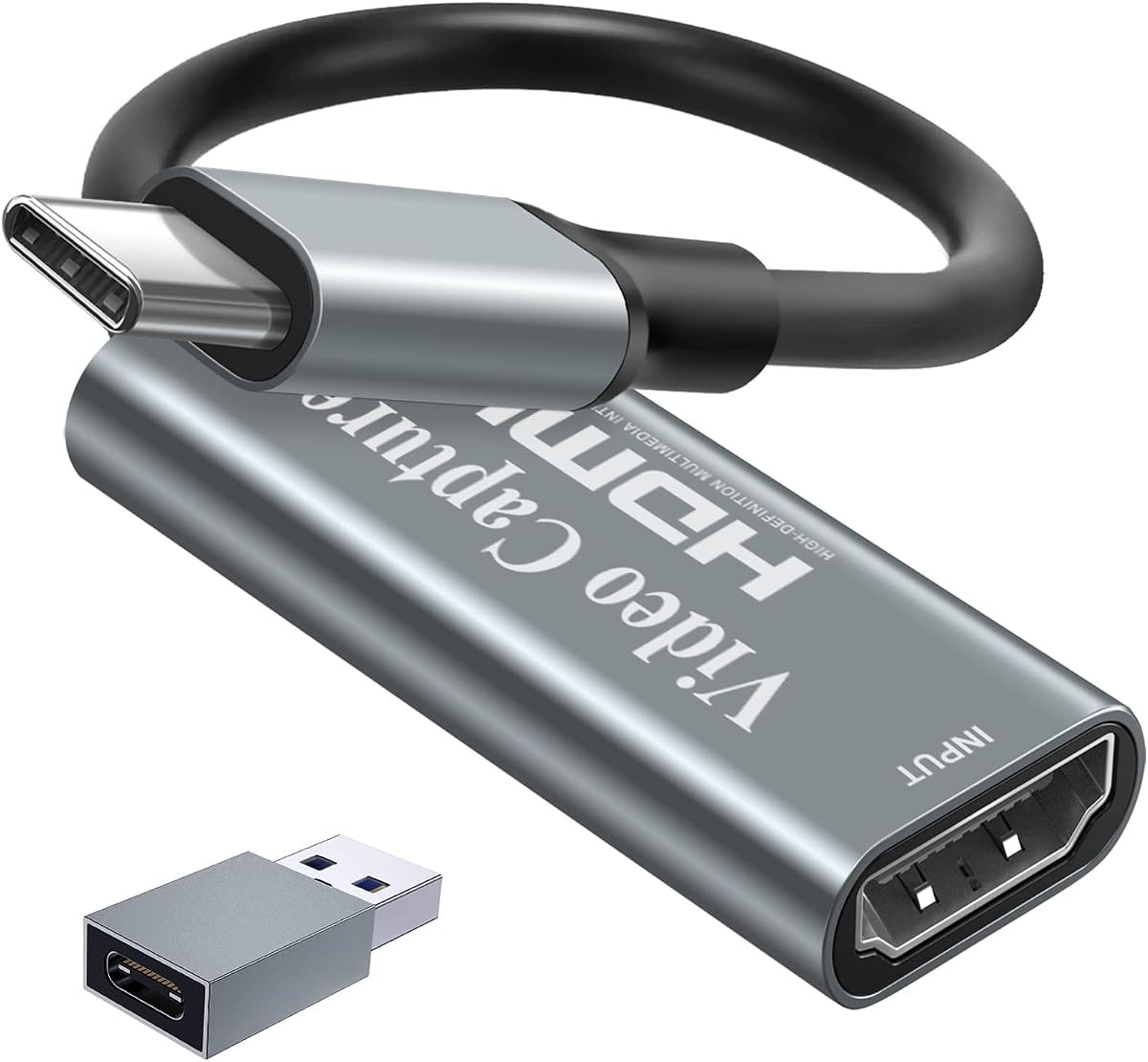
Papeaso provides a straightforward USB C capture card that works well with Linux. It supports 1080P at 60FPS and requires no drivers for quick plug and play setup.
We may earn a commission when you buy through this link, at no additional cost to you.
Its compatibility with Android and Linux makes it versatile for different devices. The lack of drivers simplifies installation though advanced features are minimal.
While it lacks premium specs it covers basic streaming and recording needs effectively. Users can rely on it for stable capture without complex configurations.
This card is best for users wanting simplicity and direct connectivity. Its Linux support and USB C design make it a practical entry level option.
The USB C connector supports modern laptops and tablets without adapters.
Operating systems recognize it as a standard device needing no additional software.
We may earn a commission when you buy through this link, at no additional cost to you.
The AVerMedia Live Gamer Ultra S is a high performance card with VRR and ultrawide support. It captures 4K60 HDR and 5.1 audio making it ideal for advanced workflows.
We may earn a commission when you buy through this link, at no additional cost to you.
Linux users can use it for high quality recording though setup may require attention to OBS workflows. The ultrawide support ensures compatibility with wide aspect ratios.
While it is expensive the features justify the cost for professionals. It delivers unmatched performance for recording high fidelity content with minimal compromise.
Best for studios and serious gamers this card offers top tier specs. Its VRR and HDR capabilities set it apart in the premium segment.
Variable refresh rate recording ensures smooth capture of high refresh games.
5.1 channel audio capture enables immersive sound for high quality videos.
We may earn a commission when you buy through this link, at no additional cost to you.
Selecting the right capture card for Linux involves considering compatibility performance features and build quality. This guide outlines key factors to help you choose a device that fits your workflow.
Linux support is critical because not all capture cards include UVC drivers. Look for devices that explicitly mention Linux in their compatibility list or rely on standard UVC protocols that most kernels recognize automatically. This ensures you can plug in the device and start using OBS or VLC without needing proprietary drivers that may not exist for your distribution.
Prioritize brands that confirm Linux support to avoid driver installation headaches and ensure stable recognition.
Capture resolution determines the quality of your recordings. Most budget cards offer 1080P at 60FPS which is sufficient for streaming. Higher end models support 4K input or output allowing for sharper footage. Ensure the output resolution matches your streaming needs while the input resolution preserves source quality for editing.
Match the resolution to your target audience and bandwidth capabilities.
Low latency is essential for real time monitoring and gameplay feedback. USB 3.0 interfaces typically provide faster data transfer reducing lag. Check if the product mentions low latency performance or features like loopout ports that allow direct monitoring without delay.
Choose low latency models to ensure responsive streaming and gaming experiences.
USB C and USB A ports offer different connectivity options. USB C is becoming standard for modern laptops and tablets providing more versatility. Ensure the capture card supports the ports you have or includes adapters to connect seamlessly.
Select a port type that matches your computer interfaces for easiest setup.
Loopout ports allow you to pass the signal through to a monitor while recording. This is vital for gaming where seeing the screen without lag is necessary. Without loopout you may experience delay between your actions and what is displayed.
Prioritize cards with loopout if real time monitoring is important.
Some capture cards include mic-in or headphone monitoring for audio sync. This eliminates the need for external mixers or interfaces. Check if the device supports audio capture and input to streamline your audio workflow.
Look for built-in audio options to simplify your recording setup.
Durable materials like aluminum housing help manage heat during long sessions. Metal casings dissipate heat better than plastic ensuring stable performance. This is important for preventing thermal throttling during extended recording or streaming.
Choose models with metal housing for better thermal management and longevity.
Prices vary widely based on features and brand. Budget cards offer solid performance for most users while premium models add advanced features like HDR or VRR support. Determine your needs and balance cost against performance requirements.
Set a budget that aligns with your use case to avoid overspending.
First connect the capture card to your Linux machine using a USB 3.0 port. Ensure your system recognizes the device by checking connected USB devices. Most capture cards will appear as video devices immediately.
Open your preferred capture software like OBS Studio. Add a new video source and select the capture card from the list. Adjust resolution and frame rate settings to match the card capabilities for best results.
To maintain performance avoid blocking vents on the device. Keep it in a cool environment during long sessions. If using a loopout monitor check cables periodically to ensure secure connections and stable signals.
Not all capture cards work with Linux out of the box. Many rely on standard UVC protocols which are supported by most modern kernels. However some brands provide proprietary drivers that may not be available for Linux. Check the product specs or compatibility lists before buying.
A 4K capture card is worth it if you plan to edit high resolution footage or stream in 4K. For standard 1080P streaming a lower resolution card may suffice. Ensure your PC can handle the data load for 4K recording before investing.
Lag can be caused by USB 2.0 ports instead of USB 3.0 or insufficient system resources. Try connecting to a different port and close other apps consuming CPU or GPU. Also ensure your capture software is optimized for the card settings.
Yes capture cards are great for online classes allowing you to connect cameras or devices to your computer. Plug and play models simplify setup making it easy to start presenting with high quality video without extra software.
Most capture cards do not require drivers on Linux as they use the UVC protocol built into the kernel. Just plug the device in and it should be recognized. If issues arise check for kernel updates or consult the manufacturer.
If the capture card has a mic-in port you can connect a microphone directly. In OBS select the capture card as the audio source. If not you may need to configure separate audio inputs in your capture software.
We have reviewed ten capture cards ranging from budget options to premium models each suited for different needs. The UGREEN 2K@30Hz model stands out for Linux compatibility while the AVerMedia Live Gamer Ultra S leads for advanced features.
Prioritize compatibility performance features like loopout and build quality based on your workflow. Whether you are streaming gaming or teaching ensure the card supports your resolution and latency needs for optimal results.
Prices and availability change frequently so verify the latest details via the product links before purchasing. This guide serves as a starting point to help you find the ideal capture card for your Linux setup.