
HP DeskJet 2955
3.7Editor score
Compact home design
Wireless printing ready
AI print optimization
Instant Ink trial included
Finding a reliable Chromebook compatible printer is essential for students professionals and home users who need seamless printing without complex driver installations. Modern printers offer wireless connectivity and cloud integration making it easier than ever to print directly from your Chrome OS device.
We evaluated ten highly rated inkjet printers based on their compatibility with Chromebooks ease of setup print quality and additional features like scanning and copying. Each product was reviewed to ensure it meets the specific needs of Chromebook users seeking efficiency and reliability in their printing workflow.
Each pick below highlights key strengths and potential trade-offs so you can make an informed decision based on your specific requirements. Please note that prices and availability may change over time so always check current listings before purchasing your new printer.
3.7Editor score

4.2Editor score

4.3Editor score
As an Amazon Associate we earn from qualifying purchases.
The following table provides a side-by-side comparison of all ten printers highlighting their core specifications and key features to help you quickly identify the best match for your Chromebook setup.

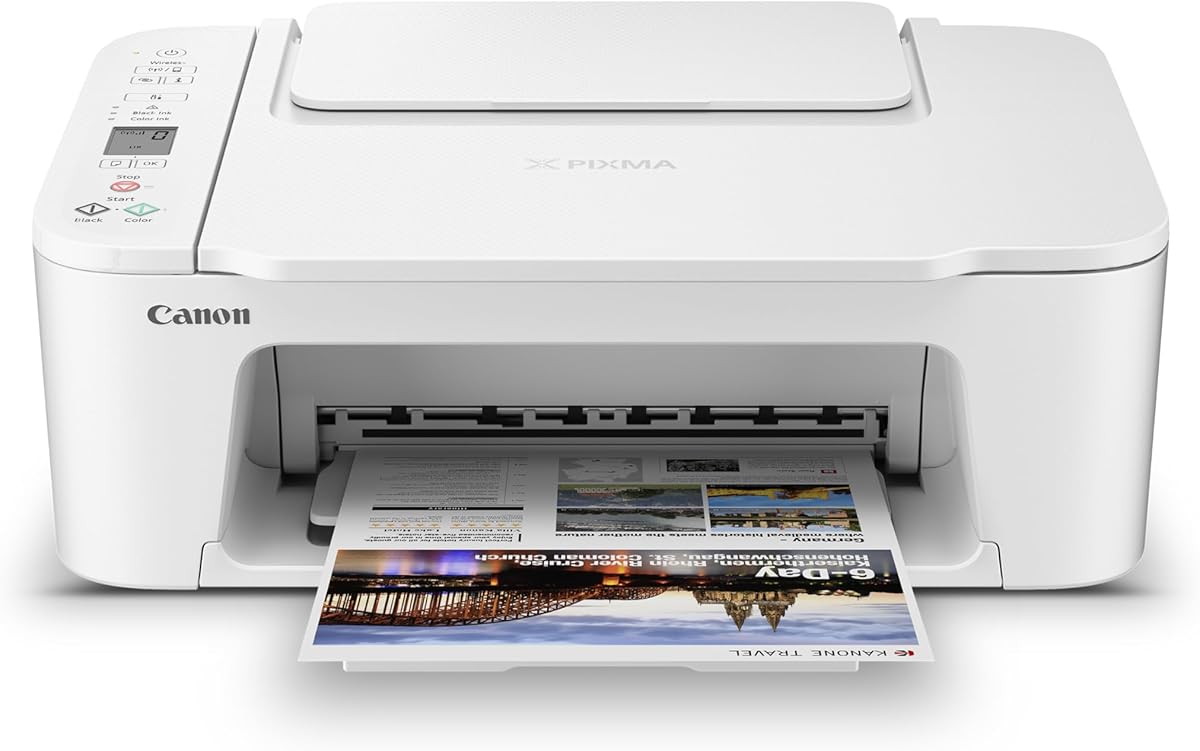


The Canon PIXMA TS6520 stands out as a top choice for Chromebook users seeking a reliable all-in-one printing solution. With a solid rating of 4.2 stars it delivers crisp vibrant prints and robust wireless connectivity that works effortlessly with Chrome OS devices.
We may earn a commission when you buy through this link, at no additional cost to you.
Its standout features include automatic duplex printing which saves paper and time along with a user-friendly OLED display that makes monitoring ink levels and adjusting settings simple. The dual-band Wi-Fi ensures stable connections so you can print documents photos or homework assignments without interruption from your Chromebook.
While the ink cartridges may require occasional replacement costs this is a common trade-off for high-quality output. The lack of an auto document feeder limits heavy scanning workflows but for typical home or student use this printer offers exceptional value and performance.
This model is ideal for home users hybrid workers and students who prioritize print quality and ease of use. If you need a versatile printer that integrates smoothly with your Chromebook and delivers professional results the Canon PIXMA TS6520 is a strong recommendation.
Chromebook users benefit from straightforward setup and seamless wireless printing without needing complex drivers or software installations.
The hybrid ink system produces sharp text and vivid colors making it suitable for both documents and photos.
We may earn a commission when you buy through this link, at no additional cost to you.
The HP DeskJet 2955 offers an affordable entry point for Chromebook owners who need basic printing scanning and copying capabilities. Its 3.7 star rating reflects solid performance for everyday tasks while the Instant Ink trial helps manage ongoing costs effectively.
We may earn a commission when you buy through this link, at no additional cost to you.
Key strengths include HP AI features that optimize print formatting to reduce wasted pages and a reliable dual-band Wi-Fi connection for smooth mobile printing. The compact design fits easily on small desks making it ideal for home offices or dorm rooms.
Print speeds are modest compared to higher-end models and the control panel lacks advanced features but these limitations are acceptable given the low price point. Users should be aware that ongoing ink costs can add up after the trial period ends.
This printer is best suited for light home users students and budget-conscious shoppers who prioritize simplicity and cost savings over high-volume performance. For basic Chromebook printing needs the HP DeskJet 2955 delivers dependable results without breaking the bank.
The low upfront price and Instant Ink trial make this an attractive option for those watching their budget closely.
HP AI helps remove unwanted content from web pages ensuring cleaner more efficient printouts every time.
We may earn a commission when you buy through this link, at no additional cost to you.
The Canon PIXMA TR7120 earns a premium status with its high 4.3 star rating and advanced features designed for demanding Chromebook users. It combines superior print quality with convenient automation tools that streamline both printing and scanning tasks.
We may earn a commission when you buy through this link, at no additional cost to you.
Standout features include an auto document feeder for quick multi-page scanning and duplex printing that reduces paper usage. The OLED display provides clear status updates and easy navigation ensuring you can manage settings directly from the device without needing a computer.
While the initial investment is higher than budget models the productivity gains and print quality justify the cost for home professionals and creative users. Ink expenses are typical for this class of printer but the output quality remains consistent and vibrant.
Ideal for users who need reliable high-volume capabilities without sacrificing quality this printer excels in home office environments. If you want a robust Chromebook compatible printer that handles documents and photos with equal finesse the Canon PIXMA TR7120 is a premium choice.
The auto document feeder and duplex printing save time and paper making it perfect for busy users.
Crisp text and vibrant colors ensure your documents and photos look polished and professional.
We may earn a commission when you buy through this link, at no additional cost to you.
The Canon PIXMA TS4320 provides a balanced mix of affordability and functionality for Chromebook users seeking an all-in-one solution. With a 4.0 star rating it delivers crisp text and vivid colors suitable for both everyday documents and casual photo printing.
We may earn a commission when you buy through this link, at no additional cost to you.
Its hybrid ink system ensures sharp results while dual-band Wi-Fi maintains stable connections for seamless mobile printing. The printer is also EPEAT Silver certified reflecting its commitment to sustainability which appeals to environmentally conscious users.
Although it lacks automatic duplex printing the manual option still saves paper if you are willing to intervene. The compact design fits well in smaller spaces but the basic control panel may require extra steps for advanced settings.
This model is well-suited for students and light home users who want reliable printing without overspending. For Chromebook owners who need a simple eco-friendly printer the Canon PIXMA TS4320 offers solid performance at an accessible price.
The hybrid ink system delivers sharp text and vibrant colors while helping you manage ink costs.
EPEAT Silver certification means this printer is built with sustainability in mind reducing environmental impact.
We may earn a commission when you buy through this link, at no additional cost to you.
The Canon PIXMA TS3720 is designed for straightforward home printing with Chromebook compatibility built in from the start. Its 4.0 star rating reflects dependable performance for everyday documents photos and schoolwork without unnecessary complexity.
We may earn a commission when you buy through this link, at no additional cost to you.
Setup is quick and intuitive allowing users to get printing within minutes using the free Canon PRINT app or AirPrint. The stable dual-band Wi-Fi connection ensures you can print from anywhere in your home without worrying about dropped signals.
One limitation is single-sided printing only which may increase paper usage for longer documents. However for typical household use this is a minor trade-off for the convenience and cost savings this model provides.
Ideal for families and students who need a no-fuss printer the Canon PIXMA TS3720 delivers essential functions reliably. If your priority is simplicity and quick Chromebook integration this printer is a practical choice.
Get up and running in minutes with a streamlined process that requires no computer for initial configuration.
Dual-band Wi-Fi ensures a stable connection so you can print from any device in your home.
We may earn a commission when you buy through this link, at no additional cost to you.
The Canon PIXMA TR4720 brings a wealth of features to the home office including printing scanning copying and faxing capabilities. Its 3.9 star rating indicates solid performance for users who want an all-in-one device that handles varied tasks efficiently.
We may earn a commission when you buy through this link, at no additional cost to you.
The auto document feeder simplifies multi-page scanning while Alexa integration allows for smart ink reorders so you never run out unexpectedly. This model supports mobile printing and works well with Chrome OS devices through standard wireless protocols.
Print speeds are moderate which may be a consideration for high-volume needs but acceptable for typical home use. The inclusion of fax capabilities may not be relevant to everyone but adds value for those who still rely on traditional communication methods.
Best suited for home offices needing multifunction capabilities the Canon PIXMA TR4720 offers convenience and automation. If you value smart features and multi-tasking abilities this printer provides a practical solution for Chromebook users.
Connect to Alexa to receive low ink alerts and place smart reorders without lifting a finger.
Print scan copy and fax all from one compact device reducing clutter and increasing productivity.
We may earn a commission when you buy through this link, at no additional cost to you.
The Brother Work Smart 1360 delivers efficiency and speed making it a strong contender for Chromebook users who prioritize productivity. With a 3.8 star rating it offers fast print speeds and convenient cloud connections that streamline your workflow.
We may earn a commission when you buy through this link, at no additional cost to you.
Featuring automatic duplex printing and a 20-sheet auto document feeder this printer handles multi-page tasks with ease. The Brother Mobile Connect app provides intuitive onscreen navigation for managing print scan and copy jobs from your mobile device.
While photo printing quality is not its main focus text documents are handled well and quickly. The cloud app support integrates smoothly with services like Google Drive and Dropbox enhancing accessibility for Chromebook users.
This model is ideal for home offices and small workspaces where speed and convenience are essential. If you need a reliable printer that keeps up with your Chromebook demands the Brother Work Smart 1360 is worth considering.
Direct access to cloud storage services like Dropbox and OneDrive lets you print files without downloading them first.
Up to 16 pages per minute black printing ensures you spend less time waiting and more time working.
We may earn a commission when you buy through this link, at no additional cost to you.
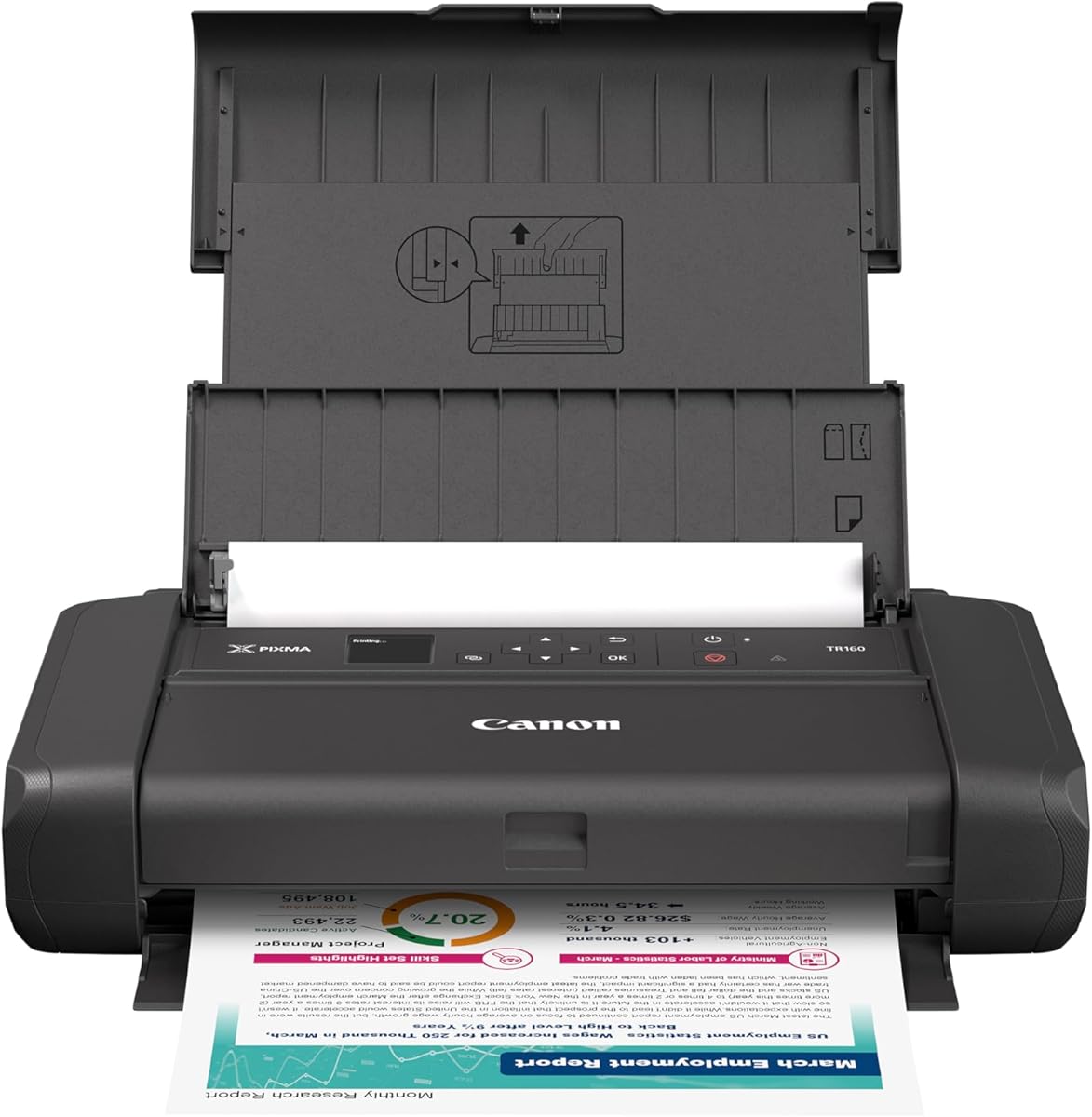
The Canon PIXMA TR160 is a standout for Chromebook users who need printing on the go with its lightweight and portable design. Boasting a 4.2 star rating it delivers high-quality prints with sharp text and vibrant colors despite its compact size.
We may earn a commission when you buy through this link, at no additional cost to you.
Its wireless direct mode allows you to connect to compatible devices without a router which is perfect for travel or remote work. The OLED display provides easy access to ink levels and settings ensuring you stay in control while printing anywhere.
While it lacks scanning capabilities the print quality and portability make up for this limitation in many scenarios. The five-color hybrid ink system ensures professional-looking results for documents and photos alike.
This printer is perfect for travelers students and professionals who need flexibility without sacrificing quality. If you want a Chromebook compatible printer that goes anywhere the Canon PIXMA TR160 is an excellent portable choice.
Its compact size fits easily into bags making it ideal for printing at coffee shops or client sites.
Connect directly to your Chromebook without needing a Wi-Fi network for instant printing anywhere.
We may earn a commission when you buy through this link, at no additional cost to you.
The HP Envy 6155 offers premium features for Chromebook users who want high-quality color printing and advanced controls. With a 4.1 star rating it excels in photo and document printing thanks to its True-to-Screen technology and intuitive touchscreen.
We may earn a commission when you buy through this link, at no additional cost to you.
HP AI tools optimize print formatting to eliminate wasted pages and awkward layouts saving time and resources. The dual-band Wi-Fi ensures stable connections and the Instant Ink trial helps manage ongoing costs effectively.
While the price is higher than budget models the print quality and user experience justify the investment for serious home users. Be aware that firmware updates may restrict third-party cartridges so sticking to HP chips is advisable.
This model is best for creatives and home professionals who need vibrant accurate colors and smart printing features. If you want a top-tier Chromebook compatible printer with excellent usability the HP Envy 6155 is a strong candidate.
P3 technology ensures your prints match what you see on your Chromebook screen for accurate vibrant results.
HP AI automatically removes unwanted content from web pages to ensure clean efficient printouts every time.
We may earn a commission when you buy through this link, at no additional cost to you.
The HP DeskJet 4355 offers an attractive option for Chromebook users wanting an auto document feeder at a budget price. With a 3.5 star rating it provides essential scanning and printing functions while including HP AI tools for optimized formatting.
We may earn a commission when you buy through this link, at no additional cost to you.
The 35-sheet auto document feeder simplifies scanning multi-page documents and HP AI helps reduce waste by cleaning up layouts. It also features dual-band Wi-Fi for reliable wireless printing and mobile app support for added convenience.
Print quality is decent for everyday use though not as sharp as premium models. The inclusion of recycled materials and ENERGY STAR certification adds value for eco-conscious buyers looking for affordability.
Ideal for households needing basic scanning without spending too much this printer balances cost and functionality. If you want a Chromebook compatible printer with an auto feeder and smart features the HP DeskJet 4355 is a practical pick.
Scan multi-page documents quickly without manually placing each page thanks to the 35-sheet auto feeder.
HP AI optimizes print layouts to reduce wasted paper and ensure your documents look exactly right.
We may earn a commission when you buy through this link, at no additional cost to you.
Selecting the right printer for your Chromebook involves considering connectivity printing features print quality and cost factors that align with your specific needs and usage patterns.
Chromebook printers should support dual-band Wi-Fi or Wi-Fi Direct to ensure stable connections and faster data transfer. Look for models with built-in cloud printing capabilities or compatibility with Chrome OS native printing features for seamless integration.
Prioritize printers that offer reliable wireless connections to avoid interruptions during printing tasks especially when sharing the device across multiple users.
Many Chromebook users rely on mobile apps to print from their phones or tablets so ensure the printer supports services like Google Cloud Print Mopria or the manufacturer's proprietary app. This flexibility extends the utility beyond just the Chromebook itself.
Check if the printer supports AirPrint or Android printing standards to maintain consistency across your devices without needing extra drivers or software.
Consider how many pages you print regularly and choose a model with adequate pages per minute (ppm) speeds to meet your workflow demands. For home or light office use speeds between 8 to 16 ppm are typically sufficient without excessive waiting times.
Higher volume users should look for larger paper trays and faster speeds to maintain efficiency during busy periods or when printing large documents or assignments.
An auto document feeder (ADF) allows you to scan or copy multiple pages at once which is vital for students and professionals handling multi-page documents. If you frequently need to digitize reports or homework this feature saves significant time and effort.
Verify the ADF capacity to ensure it can handle your typical document sizes without frequent reloading during scanning or copying jobs.
Automatic duplex or two-sided printing reduces paper usage and helps keep your documents organized without requiring manual page flipping. This feature is especially useful for printing assignments or reports where both sides need to be used efficiently.
Choose a model with built-in duplex printing to lower long-term paper costs and support more eco-friendly printing practices at home.
Evaluate the cost of replacement ink cartridges and consider printers that offer subscription services like HP Instant Ink or Canon’s ink plans to manage ongoing expenses. Some models also support smart reordering through Alexa to prevent running out unexpectedly.
Be aware that some printers lock out third-party cartridges so factor in the long-term cost and availability of original ink supplies before purchasing.
Since home desks or workspace areas can be limited check the printer’s footprint and design to ensure it fits comfortably without cluttering your area. Look for compact models with a minimalist aesthetic that blend well with your Chromebook setup.
A portable option might be preferable if you move between rooms or need to travel frequently with your printing equipment on the go.
For standard documents a basic resolution is sufficient but if you print photos or color graphics seek models with high DPI and advanced ink systems like hybrid or six-color setups. This ensures vibrant output and sharp text for professional or creative tasks.
Review sample print quality from user feedback or product specs to confirm the printer meets your visual expectations for both text and images.
Begin by connecting your printer to the same Wi-Fi network as your Chromebook then access the printer settings on your Chrome OS device to add it as a new printer. This process typically takes only a few minutes and allows you to print documents photos or webpages without extra software.
Regularly update your printer firmware through the manufacturer's app or website to ensure compatibility and access to new features. Keeping your ink levels monitored and using recommended print heads helps prevent clogs and maintains consistent print quality over time.
Store your printer in a dry and dust-free environment and cover it when not in use for extended periods to protect sensitive components. Clean the scanner glass and printheads periodically following the manufacturer’s guidelines to avoid smudged or streaky prints on your outputs.
Most modern printers support Google Cloud Print or native Chrome OS printing allowing you to connect and print wirelessly without installing drivers. However always check the printer's specifications to confirm Chromebook compatibility especially for older models that might require additional software.
Generally no most Chromebook printers work out of the box using built-in printing features and wireless connections. Some advanced models may offer companion apps for scanning or managing ink levels but core printing functions do not require installing extra software on your Chromebook.
To print open the document or webpage you want then press Ctrl + P or select Print from the menu. Choose your connected printer from the list and adjust settings like pages or copies before clicking the Print button to send the job to the printer.
Ensure both your Chromebook and printer are connected to the same Wi-Fi network and that the printer is turned on. Restart the printer and the Chromebook and check for firmware updates on the manufacturer's website if the printer still does not appear in the device list.
Yes printers require ongoing costs for ink or toner cartridges which vary by model and usage frequency. Many manufacturers offer subscription services that deliver ink automatically and at discounted rates helping you manage these costs more effectively over time.
Yes many Chromebook compatible printers support scanning via their companion apps or through the Chrome OS integrated scanning features. You can scan documents directly to your Google Drive or local storage using wireless connections without needing a separate computer.
Students benefit most from affordable models with reliable wireless connectivity and features like duplex printing to save paper. Look for printers with auto document feeders and mobile printing support to handle assignments and projects efficiently while keeping costs manageable.
We have explored ten top printers that work seamlessly with Chromebooks offering various features from portability to multifunction capabilities. Whether you need a budget-friendly model or a premium machine with advanced controls there is an option to suit every user’s needs.
When selecting your printer prioritize connectivity ease of use and ongoing costs to ensure a smooth printing experience. Consider your typical print volume and whether features like duplex printing or auto document feeders are essential for your workflow.
Remember that prices and availability change frequently so check current listings before finalizing your purchase. By choosing wisely you will enhance your Chromebook productivity and enjoy reliable high-quality prints whenever you need them.