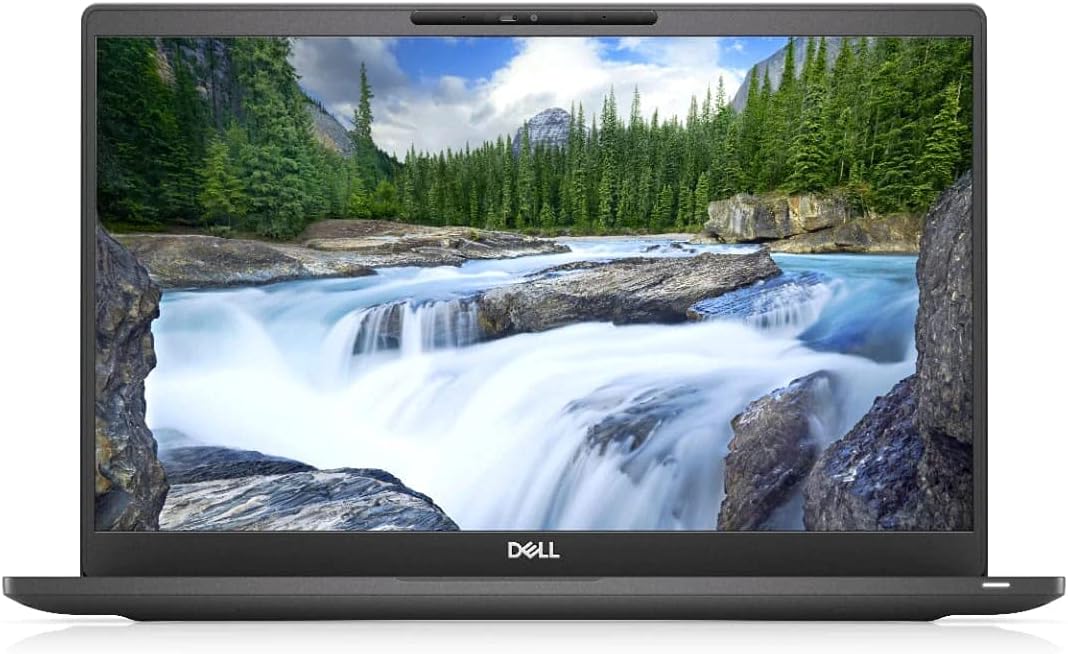
Dell Latitude 7400
4.0Editor score
Core i7-8665U processor
32GB RAM included
Renewed for lower price
Finding the right laptop for Fusion 360 is crucial for designers and engineers. You need a machine that handles complex assemblies and rendering without lag or crashes during work.
We compared ten laptops based on performance, portability, and value. Each pick offers unique strengths for running Autodesk software efficiently in various professional environments.
Each pick shows key specs and real-world strengths for your workflow. Prices change frequently, so verify current deals before buying to get the best value today.
4.0Editor score

4.5Editor score

4.0Editor score
As an Amazon Associate we earn from qualifying purchases.
This table summarizes the key specifications of all ten laptops. Compare processors, memory, and graphics to find the model that fits your design needs.

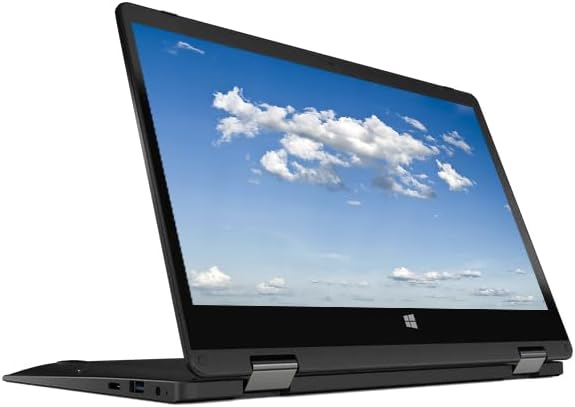



This HP Victus laptop is the top pick for Fusion 360 users due to its balanced performance. With an 8-core Intel i5-13420H and RTX 3050 GPU, it manages CAD tasks efficiently while maintaining a stable frame rate during 3D navigation.
We may earn a commission when you buy through this link, at no additional cost to you.
The standout strength is the 32GB DDR4 RAM paired with a 1TB SSD. This combination ensures that large assemblies load quickly and you can multitask with browser windows or communication tools without slowdowns. The 144Hz display also makes scrolling through wireframes smoother.
Trade-offs include a heavier chassis typical of gaming laptops and moderate battery life under heavy rendering. However, these are acceptable for a machine focused on desktop replacement performance rather than ultralight portability for all-day mobile work.
Buy this if you need a reliable primary workstation for engineering or design projects. The robust specs make it ideal for students and professionals who prioritize speed and stability in Fusion 360 over weight savings.
The 8-core CPU and dedicated graphics ensure smooth rendering and simulation tasks within Fusion 360.
32GB of RAM allows you to keep Fusion open alongside design tools and browsers without performance hits.
We may earn a commission when you buy through this link, at no additional cost to you.
The Dell Latitude 7400 offers surprising value for Fusion 360 with its renewed status and 32GB RAM. While it lacks a dedicated GPU, the quad-core i7-8665U can handle basic to moderate modeling tasks efficiently enough for learning or light professional work.
We may earn a commission when you buy through this link, at no additional cost to you.
Its key strength is the generous memory allocation, which helps Fusion keep assemblies in memory. The FHD screen ensures lines and text are sharp, aiding precision work. The refurbished nature makes it an affordable entry point into the software ecosystem.
Trade-offs involve limited GPU performance for complex shading or simulations. Older integrated graphics mean you won't get the fastest viewport updates compared to newer RTX laptops, but basic rotation and translation remain functional.
This is ideal for students or small businesses needing a secondary machine for basic CAD work. It proves that with enough RAM, older laptops can still run Fusion 360 effectively for everyday designs.
Buying renewed allows you to access higher specs like 32GB RAM at a much lower cost than new models.
The quad-core i7 provides enough processing power for 2D drafting and simple 3D modeling operations.
We may earn a commission when you buy through this link, at no additional cost to you.
This ASUS TUF F16 is a powerhouse for Fusion 360 with its RTX 4050 and DDR5 RAM. The hardware is built for heavy lifting, ensuring that rendering, simulation, and complex assembly operations run without interruption or thermal throttling.
We may earn a commission when you buy through this link, at no additional cost to you.
The standout feature is the DDR5 memory and the RTX 4050 GPU. DDR5 offers faster bandwidth for multitasking, while the GPU accelerates the visual viewport significantly. The 16-inch screen provides extra canvas space for viewing toolbars and drawings.
Trade-offs include the higher price tag and gaming-oriented design which some might prefer to hide. However, for pure performance and future-proofing, the investment is justified for professionals handling daily complex projects.
Invest in this if you need a top-tier machine for professional engineering or architecture. It delivers the power needed for demanding workflows and handles multitasking with ease.
DDR5 RAM improves data transfer speeds between CPU and memory for faster assembly loading times.
RTX 4050 hardware accelerates visual rendering, making real-time 3D manipulation smoother and more responsive.
We may earn a commission when you buy through this link, at no additional cost to you.
The HP Chromebook x360 offers a portable option for Fusion users relying on web access. While limited by ChromeOS and a basic N200 processor, it serves well for reviewing designs, checking emails, or using the browser-based version of Fusion 360 for light tasks.
We may earn a commission when you buy through this link, at no additional cost to you.
Its strength is the battery life and flexible 2-in-1 design. The 8GB LPDDR5 RAM helps keep multiple browser tabs open smoothly. The FHD IPS screen delivers vibrant colors, which is useful for visualizing design concepts during meetings.
Trade-offs are significant for serious CAD work because Fusion 360 runs best on Windows. The N200 chip cannot handle heavy modeling loads. It is more of a companion device than a primary workstation for complex engineering.
Choose this if you need a secondary device for reviewing drawings while traveling. It is great for lightweight tasks but not intended as a standalone solution for heavy Fusion modeling.
The convertible hinge lets you adjust the screen angle for comfortable sketching or reviewing during meetings.
Ideal for accessing cloud-hosted Fusion files when you only need to view or comment on designs.
We may earn a commission when you buy through this link, at no additional cost to you.
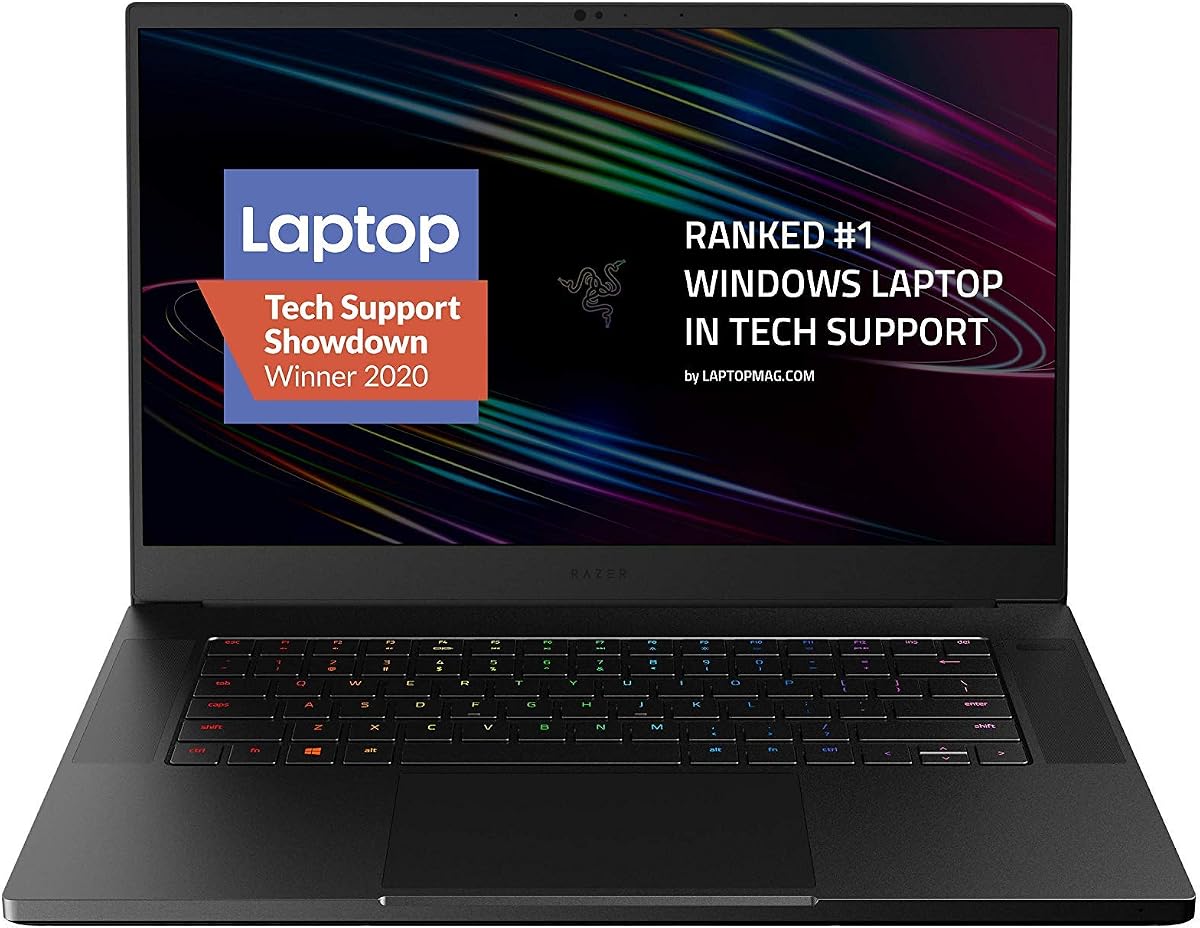
The Razer Blade 15 combines power with elegance. Its 8-core CPU and RTX 2070 Super make it capable of handling high-fidelity rendering tasks in Fusion 360 with ease. The build quality is top-tier, fitting well in professional settings.
We may earn a commission when you buy through this link, at no additional cost to you.
Its standout quality is the 300Hz display. This high refresh rate ensures that rotating 3D models feels incredibly fluid and responsive. The 2070 Super GPU has ample VRAM for complex textures and simulations.
Trade-offs include the 16GB RAM, which might need an upgrade for very large assemblies. The price is also premium for a 2020 model compared to newer options. However, the build quality remains competitive.
This suits professionals who value aesthetics alongside performance. If you need a laptop that doubles as a high-performance workstation and looks great in client meetings, this is a strong choice.
The 300Hz screen provides exceptionally smooth animation for navigating complex 3D models without lag.
CNC aluminum construction ensures durability and a professional look that stands out from plastic gaming chassis.
We may earn a commission when you buy through this link, at no additional cost to you.
This ASUS TUF model offers a solid balance of performance and durability for Fusion users. The i7-9750H provides enough power for most modeling tasks. However, the 8GB RAM is a bottleneck for larger assemblies.
We may earn a commission when you buy through this link, at no additional cost to you.
Its key strength is the durable MIL-STD-810G build. It can withstand the rigors of daily commuting or field work better than standard laptops. The 144Hz display adds value for smooth interaction.
Trade-offs are mainly memory and GPU limitations. The 1650 is decent but not cutting-edge for high-end visuals. Upgrading the RAM would be a recommended step to unlock full Fusion potential.
Buy this if you need a rugged machine for student or junior design work. With a RAM upgrade, it becomes a capable mid-range workstation that can handle everyday engineering tasks.
MIL-STD-810G certification ensures the chassis can survive drops and shocks better than typical consumer laptops.
The 144Hz refresh rate ensures fluid screen updates when rotating views in the design viewport.
We may earn a commission when you buy through this link, at no additional cost to you.
This HP X360 offers a compact solution for basic Fusion viewing. Its 11.6-inch screen fits in small bags, making it a great travel companion. The touchscreen allows for easy annotations during design reviews.
We may earn a commission when you buy through this link, at no additional cost to you.
Its strength lies in its portability and flexibility. The 360-degree hinge lets you switch to tablet mode for marking up drawings. It provides basic processing power for viewing files and light editing.
Trade-offs include the small screen and storage. The HD resolution might make small text hard to read for detailed CAD work. 128GB storage may require an external drive for project files.
Choose this if you need a budget-friendly second device for on-the-go access. It is best for viewing designs rather than heavy modeling work on small screens.
Its small footprint fits easily into backpacks or briefcases for commuting to client meetings.
Touch input allows quick zooming and scrolling through design layers without a mouse.
We may earn a commission when you buy through this link, at no additional cost to you.
The Acer Gateway is an ultra-budget option for students just starting. It provides basic computing for viewing CAD files and checking specs. However, the 4GB RAM limits how many tabs you can keep open.
We may earn a commission when you buy through this link, at no additional cost to you.
Its strength is the low cost and convertible design. It allows you to work from different angles without a mouse. The IPS panel offers better viewing angles than typical budget TN screens.
Trade-offs are significant for actual Fusion work. The limited RAM and storage mean you will likely face slowdowns or need external drives. It is more of a viewing tool than a design tool.
Buy this only if you have a very tight budget and need a spare machine. It is suitable for learning basics but not for professional or complex engineering projects.
Low price allows students to get a device for file management without financial stress.
The screen quality supports clear reading of design files during remote review sessions.
We may earn a commission when you buy through this link, at no additional cost to you.
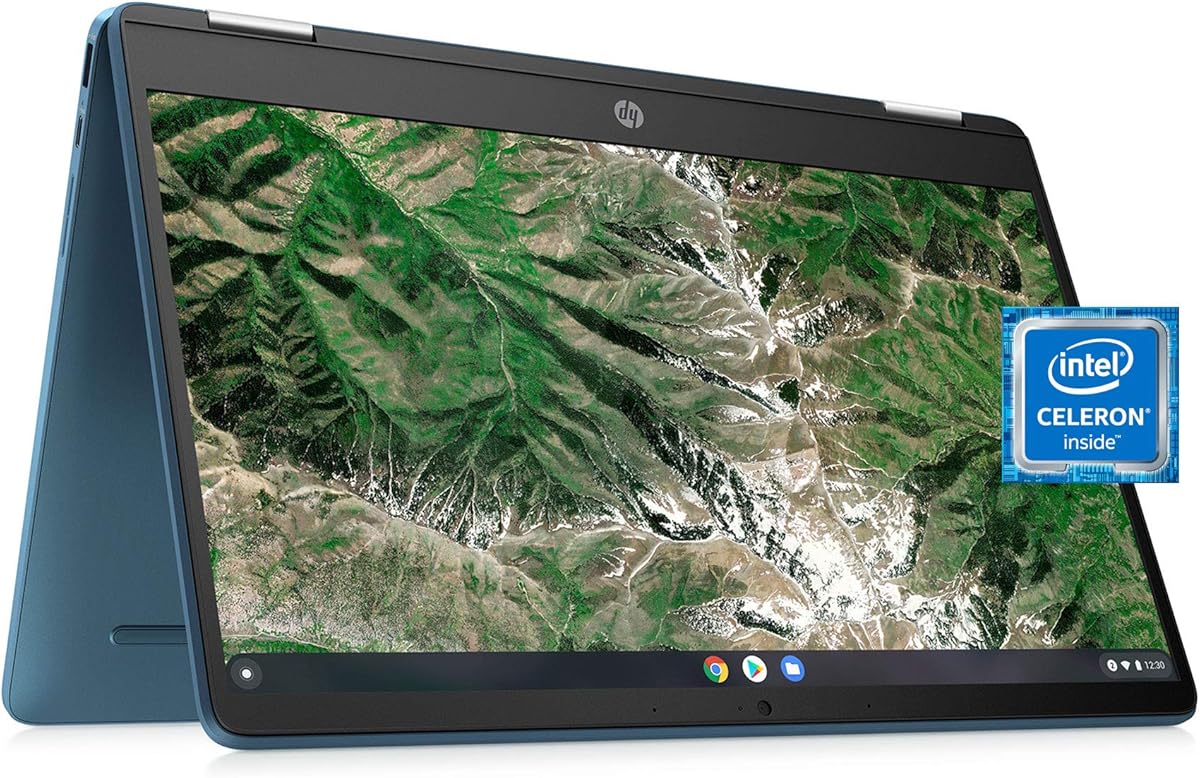
This HP Chromebook works well for Fusion users relying on web-based workflows. Its Celeron processor handles basic web tasks smoothly. It serves as a great secondary device for file management or communication.
We may earn a commission when you buy through this link, at no additional cost to you.
Its strength is the ChromeOS simplicity. Updates are automatic, and the battery life is usually good for all-day use. The touchscreen adds convenience for reviewing PDFs or web designs.
Trade-offs include limited offline capability for heavy Fusion rendering. The 4GB RAM is low for heavy browser tabs. It is strictly a companion device for viewing or checking details on the go.
Choose this if you need a reliable backup for viewing designs. It is not a primary design tool but ensures you stay connected to your projects while traveling.
ChromeOS provides seamless access to cloud-based design tools and web apps for reviewing models.
Automatic updates ensure the system stays secure without manual intervention from the user.
We may earn a commission when you buy through this link, at no additional cost to you.
The Acer Chromebook Spin 513 brings FHD clarity to the budget segment. Its Snapdragon 7c ensures decent power efficiency. It is ideal for checking emails or reviewing files while on the move.
We may earn a commission when you buy through this link, at no additional cost to you.
Its strength is the FHD screen and durability. The Gorilla Glass ensures the screen survives daily bumps. The 360-degree hinge adds versatility for different work angles during travel.
Trade-offs involve the lack of native Windows apps. You will rely on web apps for design review. It is not intended for deep engineering but works well for quick access to project files.
Buy this if you need a durable, portable device for checking designs. It is a great partner for your main workstation when you need to verify details remotely.
Corning Gorilla Glass protects the screen from scratches and impacts during daily travel.
Snapdragon 7c provides long battery life for uninterrupted review sessions during travel.
We may earn a commission when you buy through this link, at no additional cost to you.
Choosing the right laptop requires balancing power and budget. This guide outlines key factors to consider for a smooth CAD experience.
Fusion 360 relies heavily on CPU speed for calculations. Aim for a quad-core or better processor like an Intel Core i5 or i7 to ensure smooth operation during complex modeling.
Look for high clock speeds to reduce rendering time and improve overall system responsiveness.
A dedicated GPU accelerates 3D rendering significantly. For Fusion 360, an NVIDIA RTX series card provides hardware acceleration for better viewport performance.
Integrated graphics can work for basic tasks but will struggle with complex assemblies or simulations.
RAM determines how many applications you can run simultaneously. 16GB is the sweet spot for Fusion 360, allowing you to keep multiple design files open without lag.
If you work with huge datasets, upgrading to 32GB ensures smooth multitasking and faster processing times.
Solid State Drives (SSD) are essential for quick boot times and fast file loading. Aim for at least 512GB of space to store software and project files locally.
NVMe SSDs offer faster speeds than SATA models, reducing wait times when opening large 3D files.
A high-resolution screen helps you see design details clearly. 1080p is standard, but IPS panels offer better colors and viewing angles for collaborative work.
Larger screens like 15-inch or 16-inch models provide more workspace for complex toolbars and drawings.
If you work on the go, battery life is critical. Look for models with efficient processors and long battery ratings to avoid finding power outlets constantly.
Balance weight with power; gaming laptops often last less time but offer more performance than ultrabooks.
Fusion 360 runs natively on Windows and macOS. Ensure your laptop supports the OS you need to avoid compatibility issues with design software.
Chromebooks generally run Fusion only via browser, which limits features. Stick to Windows for full functionality.
Ports matter for connecting external monitors or storage. Look for USB Type-C and HDMI ports to expand your setup for dual-screen workflows.
Thunderbolt support allows for faster data transfer and connection to powerful external GPUs if needed.
To maintain performance, regularly clean your dust filters. Dust buildup causes overheating and throttling, which slows down rendering. Use a soft brush or compressed air to clear vents periodically.
Manage your files efficiently by using cloud sync. Fusion 360 stores data online, but keeping local backups prevents data loss. Regularly clear your cache to prevent the system from slowing over time.
Adjust your power settings for performance. When running heavy simulations, select High Performance mode to ensure the CPU and GPU run at full speed. When working on text, return to Balanced to save energy.
While basic modeling can run on integrated graphics, a dedicated GPU is recommended for smooth navigation of complex 3D models. It accelerates rendering and ensures better performance during simulations.
Autodesk recommends at least 8GB of RAM for basic tasks. However, 16GB is ideal for handling multiple applications or larger assemblies without slowdowns.
Yes, Fusion 360 runs natively on macOS. Just ensure your Mac meets the minimum system requirements for CPU and memory to run the software effectively.
No, Fusion 360 supports Windows 10 and Windows 11. Both operating systems are fully compatible with the software for design and engineering work.
Check the official Autodesk system requirements page. Compare your laptop's CPU, GPU, and RAM against the minimum and recommended lists to ensure compatibility.
Tablets with ARM processors run Fusion 360 via cloud apps. However, desktops offer full feature access and better performance for complex design tasks.
The HP Victus and ASUS TUF F16 lead the pack for performance. They offer the balance of RAM and graphics needed for demanding CAD workflows.
For budget-conscious users, the Dell Latitude 7400 provides excellent value. It proves that you don't need the newest gear to handle daily design tasks efficiently.
Remember that prices change frequently. Always verify current deals before buying to ensure you get the best value for your specific design requirements.